LATTICE shape generation
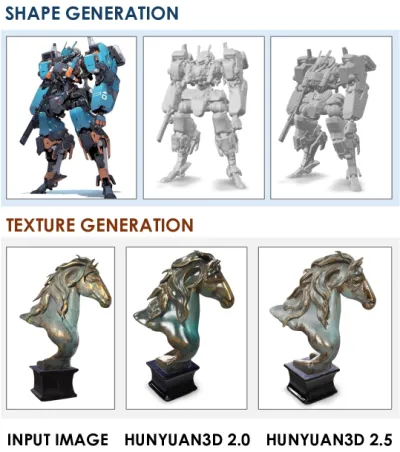
Tighter condition follow, cleaner mesh. Silhouette drift or noisy surfaces → rebind/decimate from scratch; 2.5 defaults to getting shape right first.
Tencent Hunyuan image-to-3D: LATTICE shape + multi-view PBR, two-stage textured mesh output. Default when product/character prototypes need accurate geometry and readable materials.
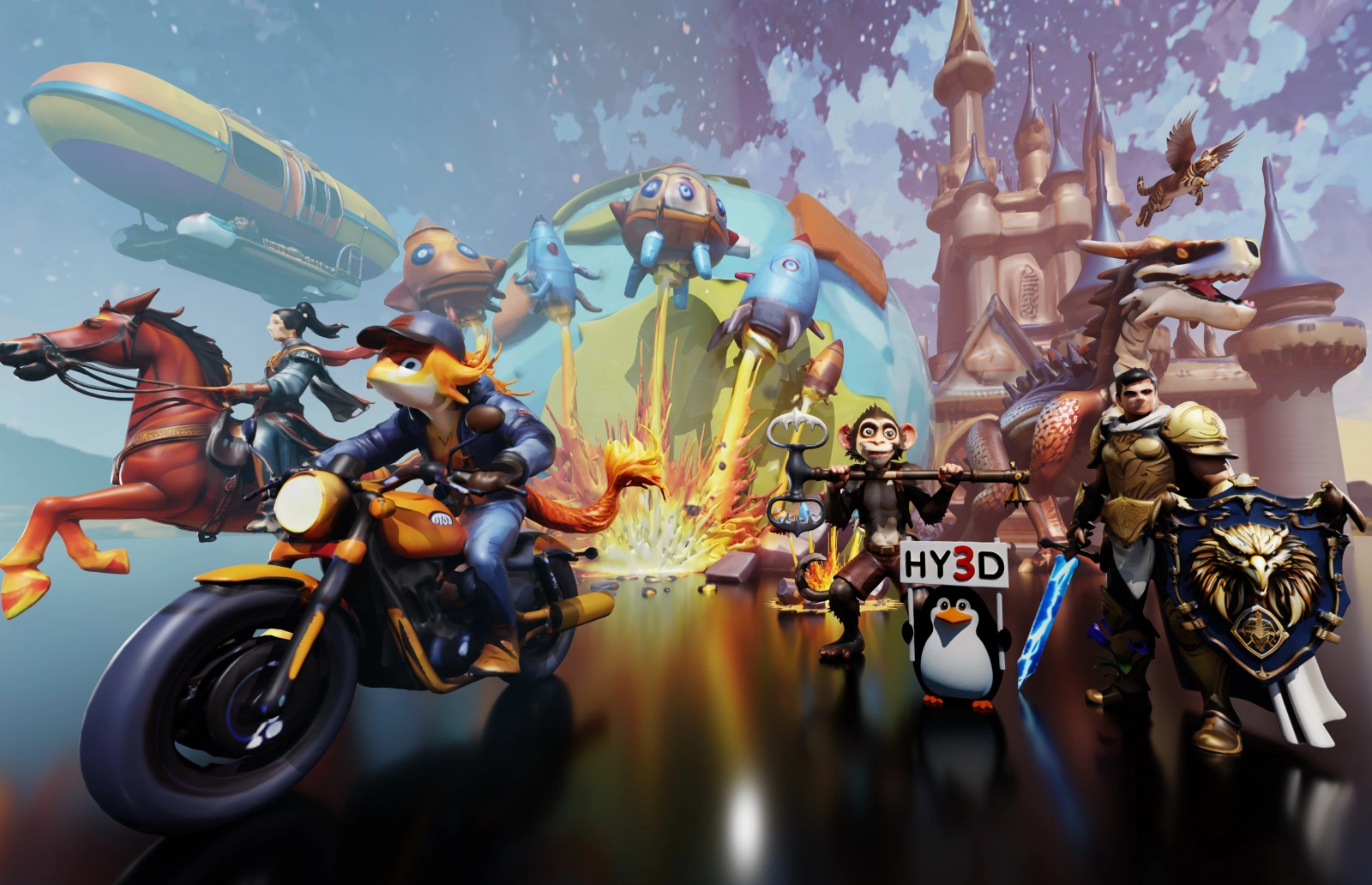
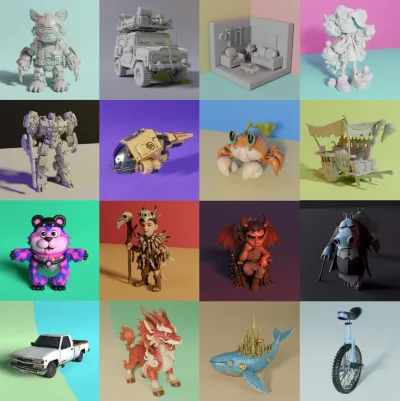
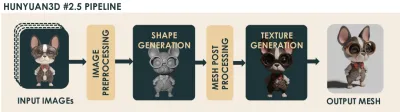
Official result gallery, shape/texture comparisons vs 2.0, two-stage pipeline, and geometry/PBR benchmarks — check finished detail and material read.
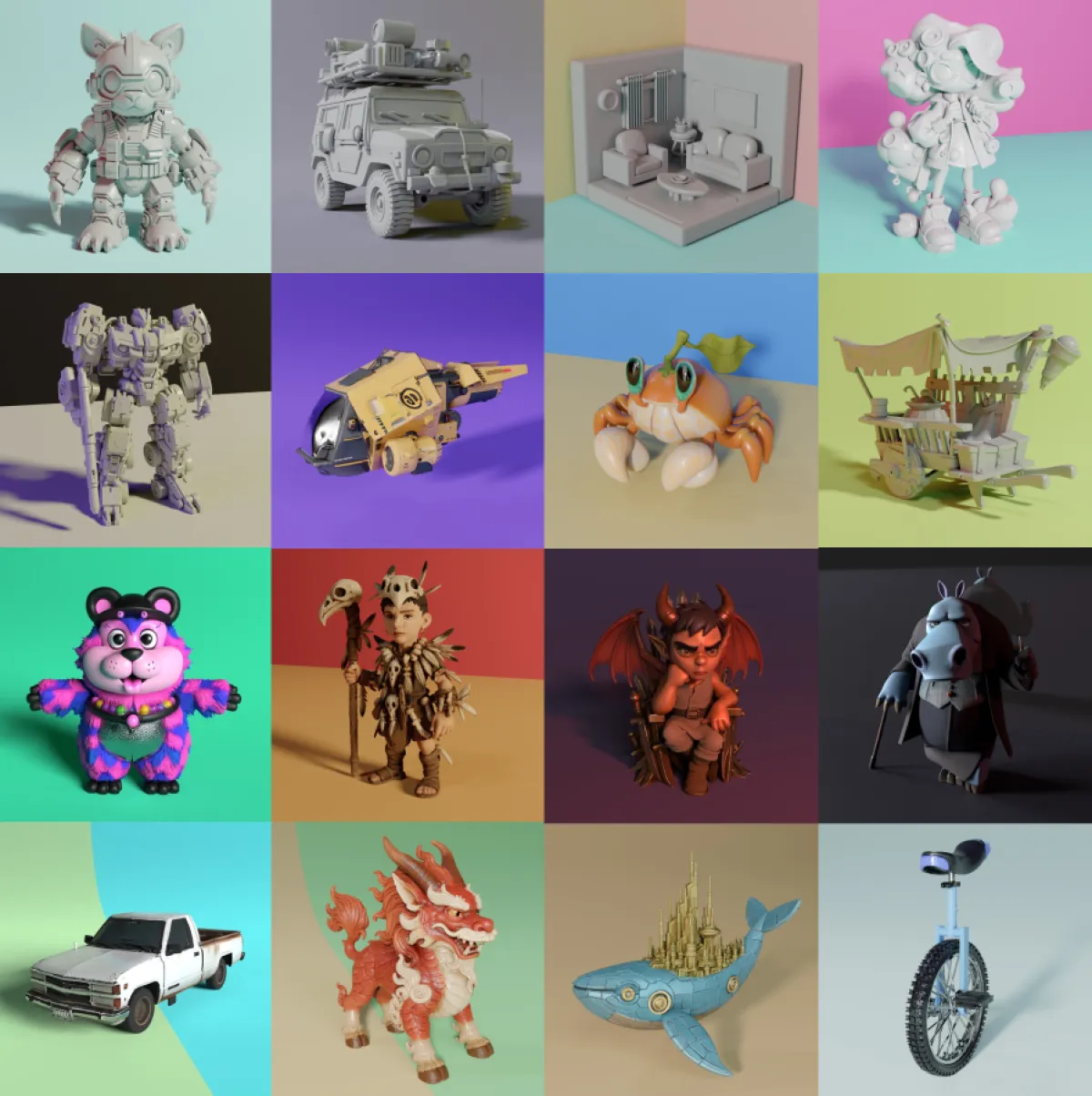
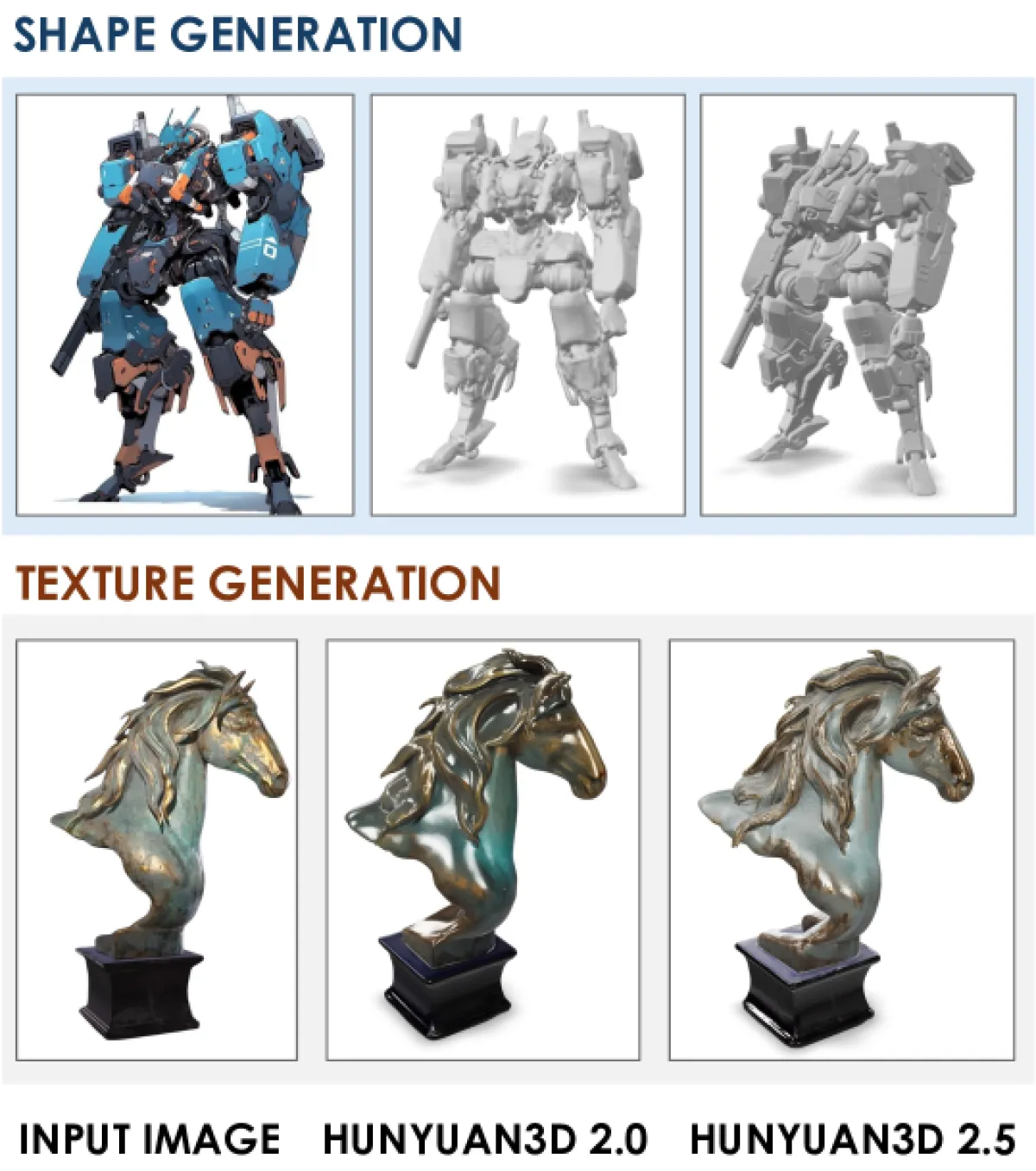
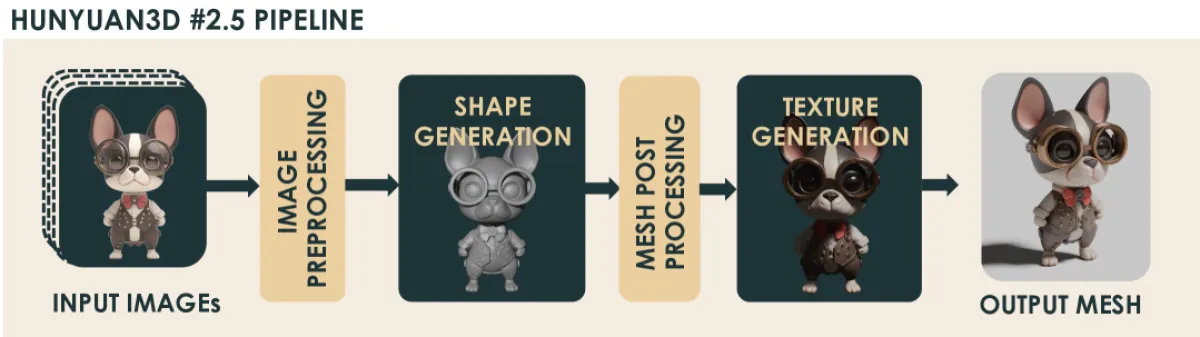
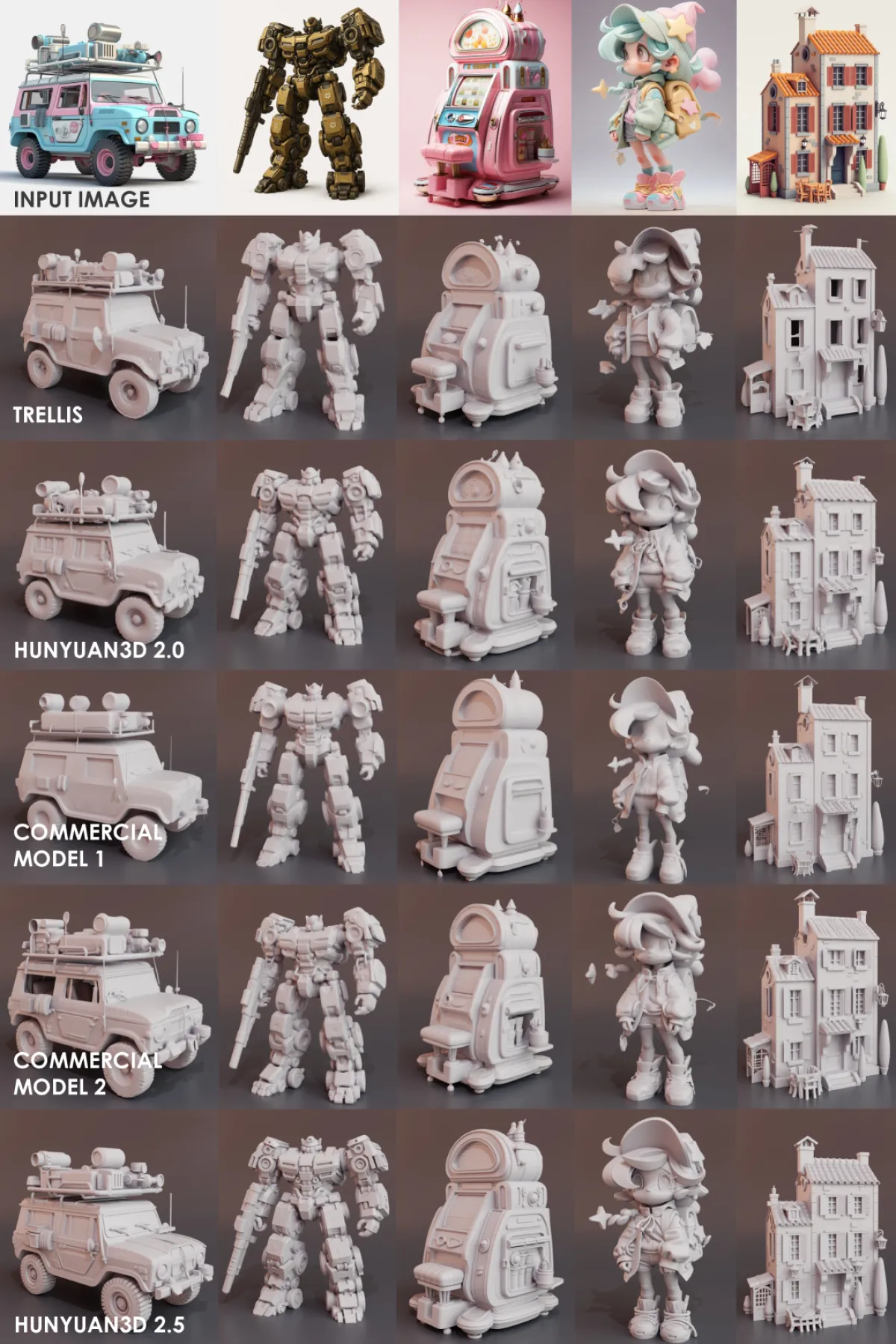
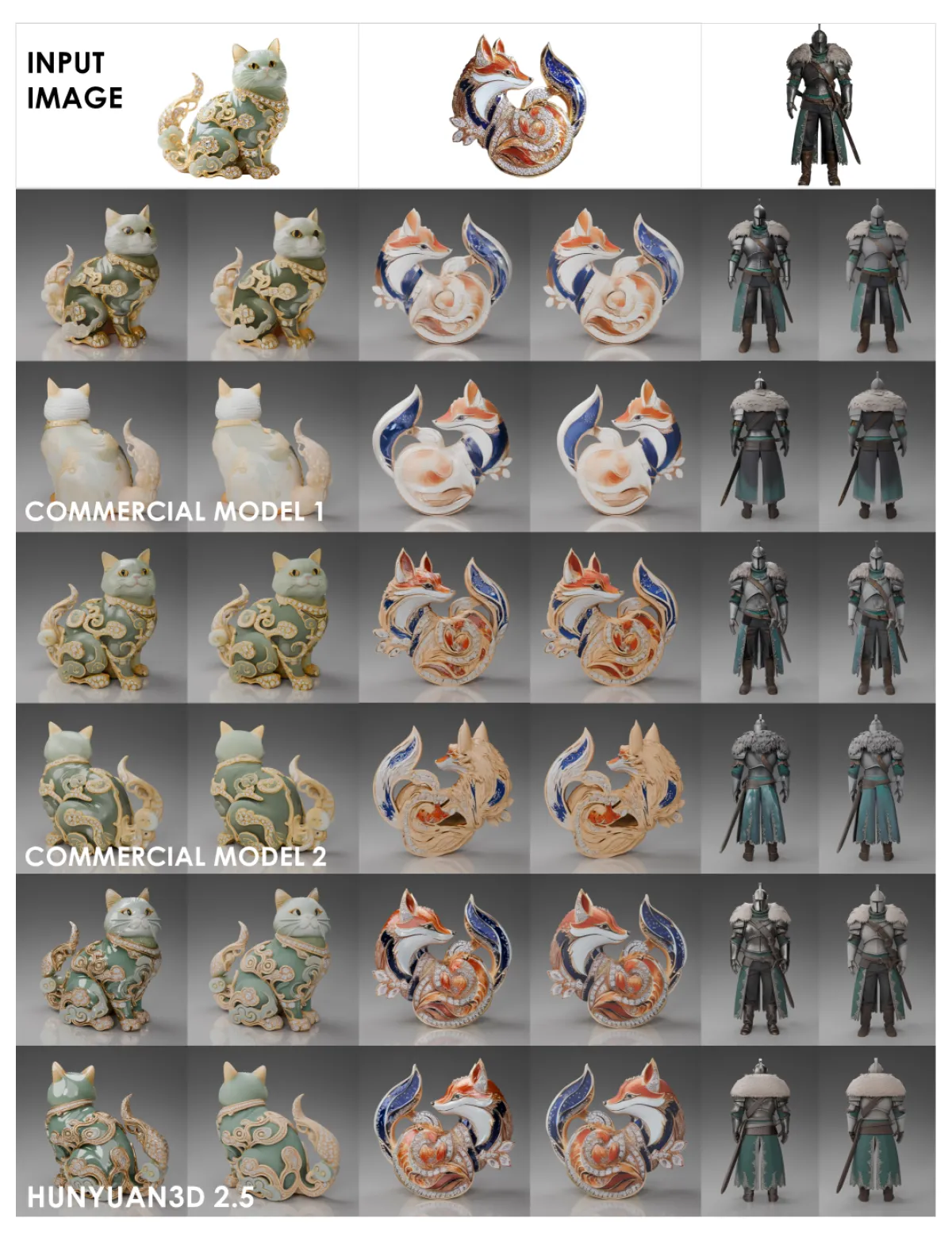
LATTICE turns condition images into clean meshes; multi-view PBR fills materials — when silhouette drift or texture misalignment kills a prototype round, default to 2.5’s two-stage pipeline.
Tighter condition follow, cleaner mesh. Silhouette drift or noisy surfaces → rebind/decimate from scratch; 2.5 defaults to getting shape right first.
Extended Paint architecture outputs albedo and MR channels. Texture/geometry mismatch or metal/plastic mud makes renders look fake instantly.
Untextured mesh first, then texture. Use shape-only or texture-only stages; no full end-to-end rerun every time.
Product white models to character prototypes — jobs that took modelers days now de-risk stages with image-to-3D first.
SKU hero to turntable mesh. Rough geometry or cracked textures fail product pages on spin; default 2.5 when condition follow and readable PBR matter.
Concept art to volume and look fast, then rigging. Silhouette unlike reference wastes a week; LATTICE aligns first, polish later.
Check volume and hard edges before fine modeling. Wrong thin walls or cutouts waste everything downstream; reports show 2.5 handles complex structure better.
Go to 3D Model and select Hunyuan 3D 2.5 (slug: hunyuan-3d-2-5; official name Hunyuan3D 2.5).
Full subject, minimal occlusion, clean background; characters near T/A pose when possible. Blurry input loses shape follow first.
Check silhouette and mesh first, then texture alignment; export to Blender / Unity / Unreal to continue.
Align before you start: free credits, model name, input requirements, why upgrade from 2.0, when to default.
LATTICE shape · multi-view PBR · two-stage image-to-3D — alongside mainstream models.
Use Hunyuan 3D 2.5 freeNo Tencent Hunyuan account required.