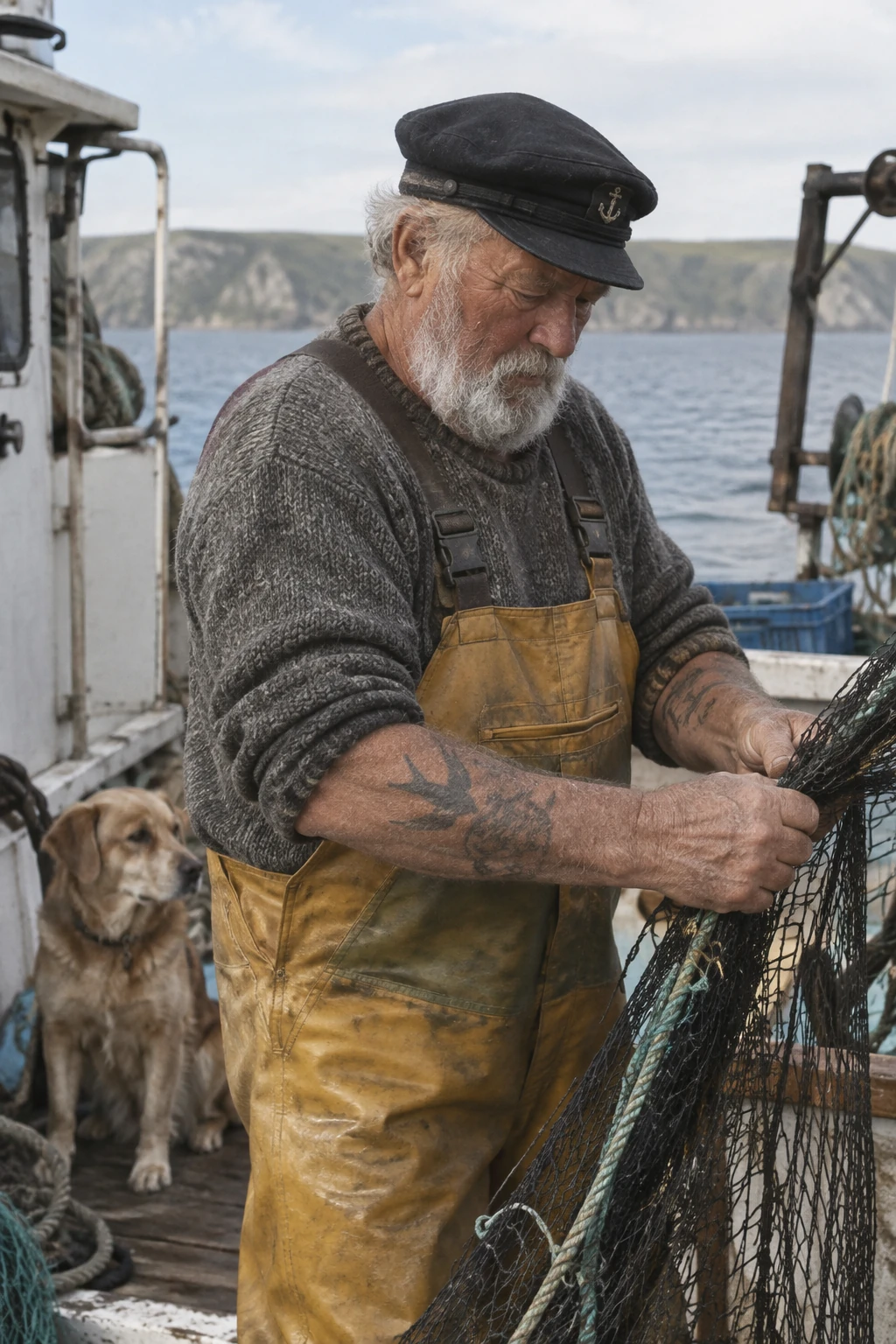
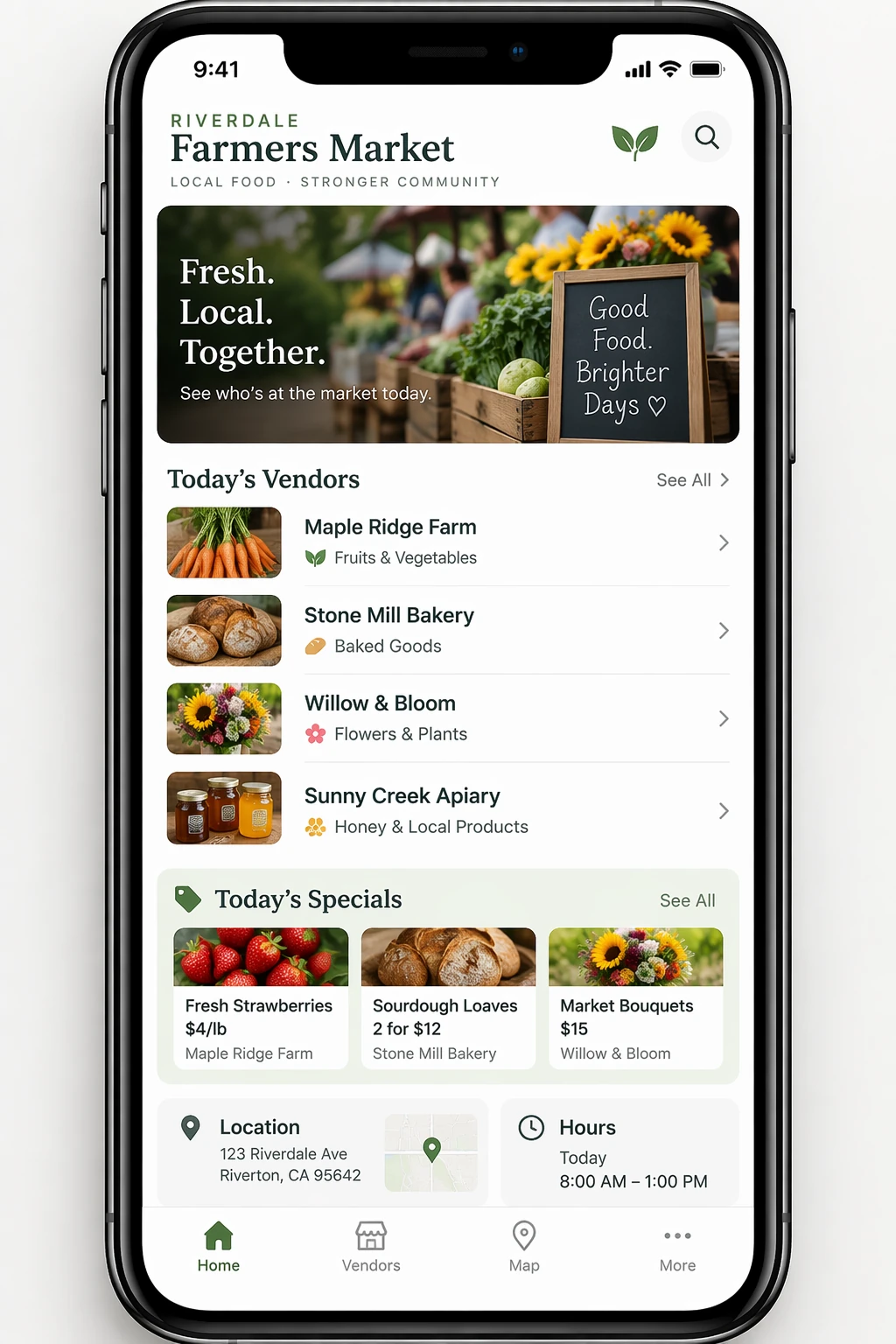
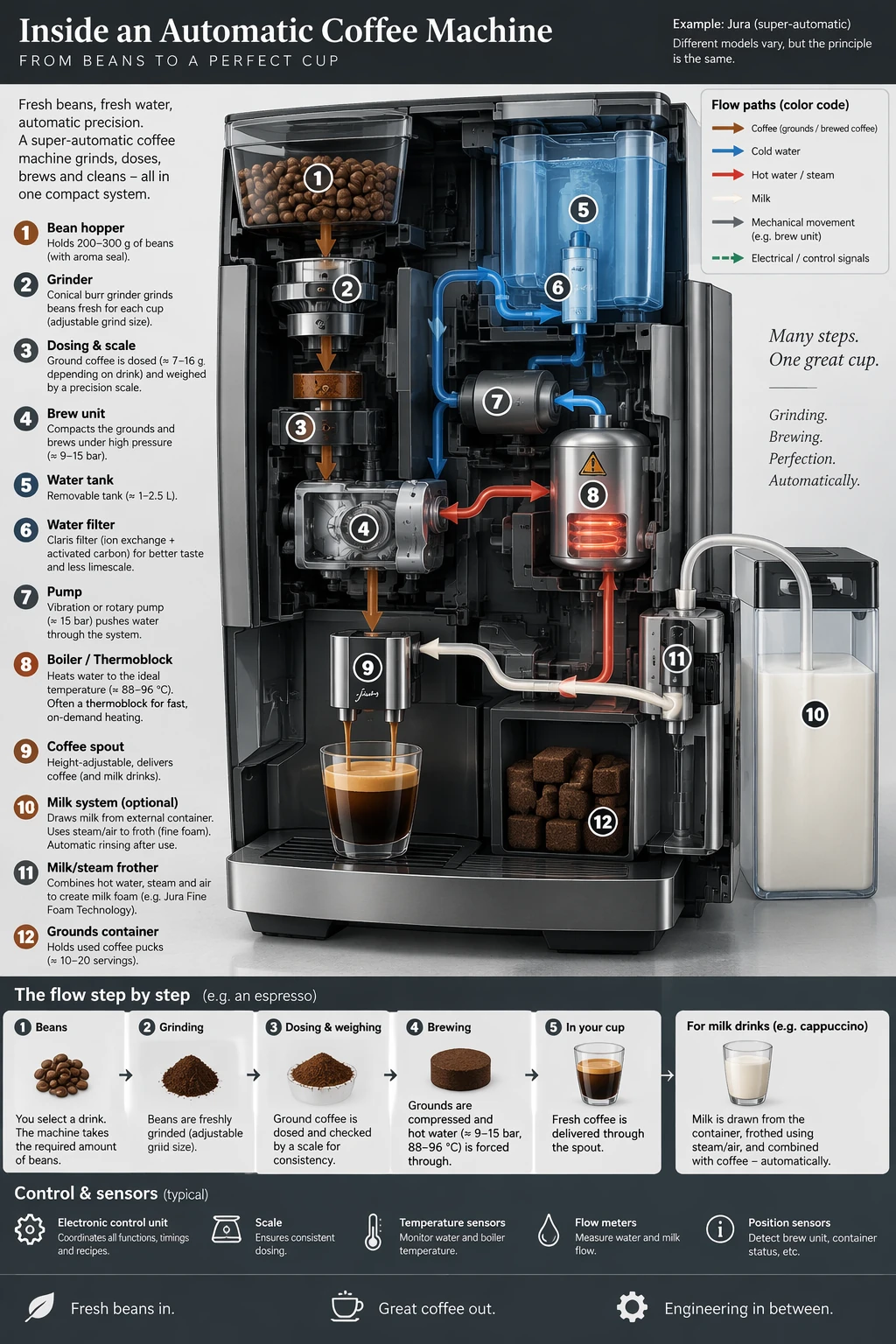
Turn a rough sketch into a finished image, change an outfit or refine a product shot. Tell GPT Image 2.5 what to change while keeping faces, product details and composition as consistent as possible.
1Upload a sketch or photo2Describe the result you want3Create and refine
Choose a template to start
Official GPT Image 2.5 examples
Change the target, preserve the frame
BeforeAfter · Sunburst
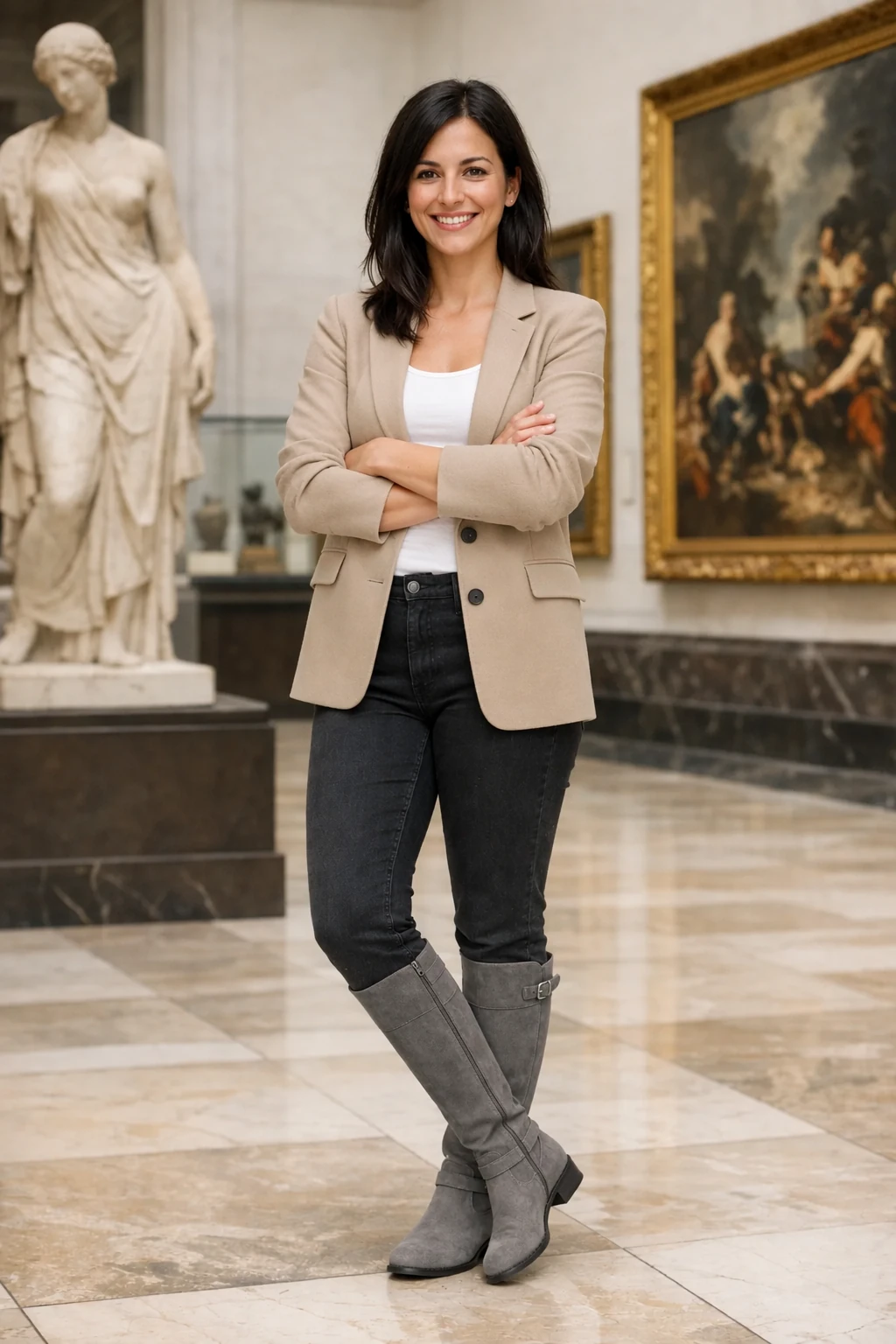
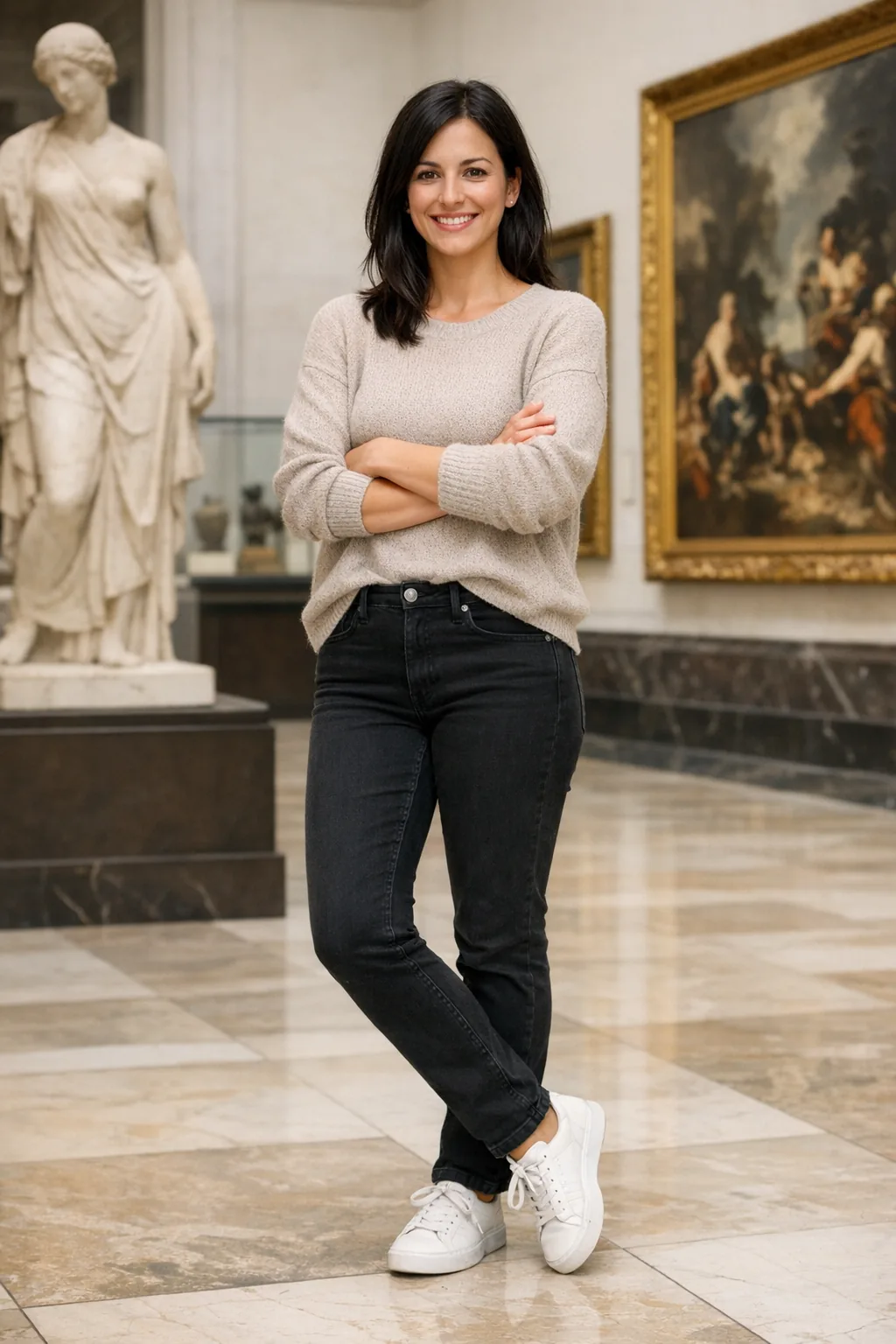
Change clothing, keep identity
The outfit changes while the person's face, expression, hair, pose, museum setting and camera framing remain recognizable.
BeforeAfter · Sunburst
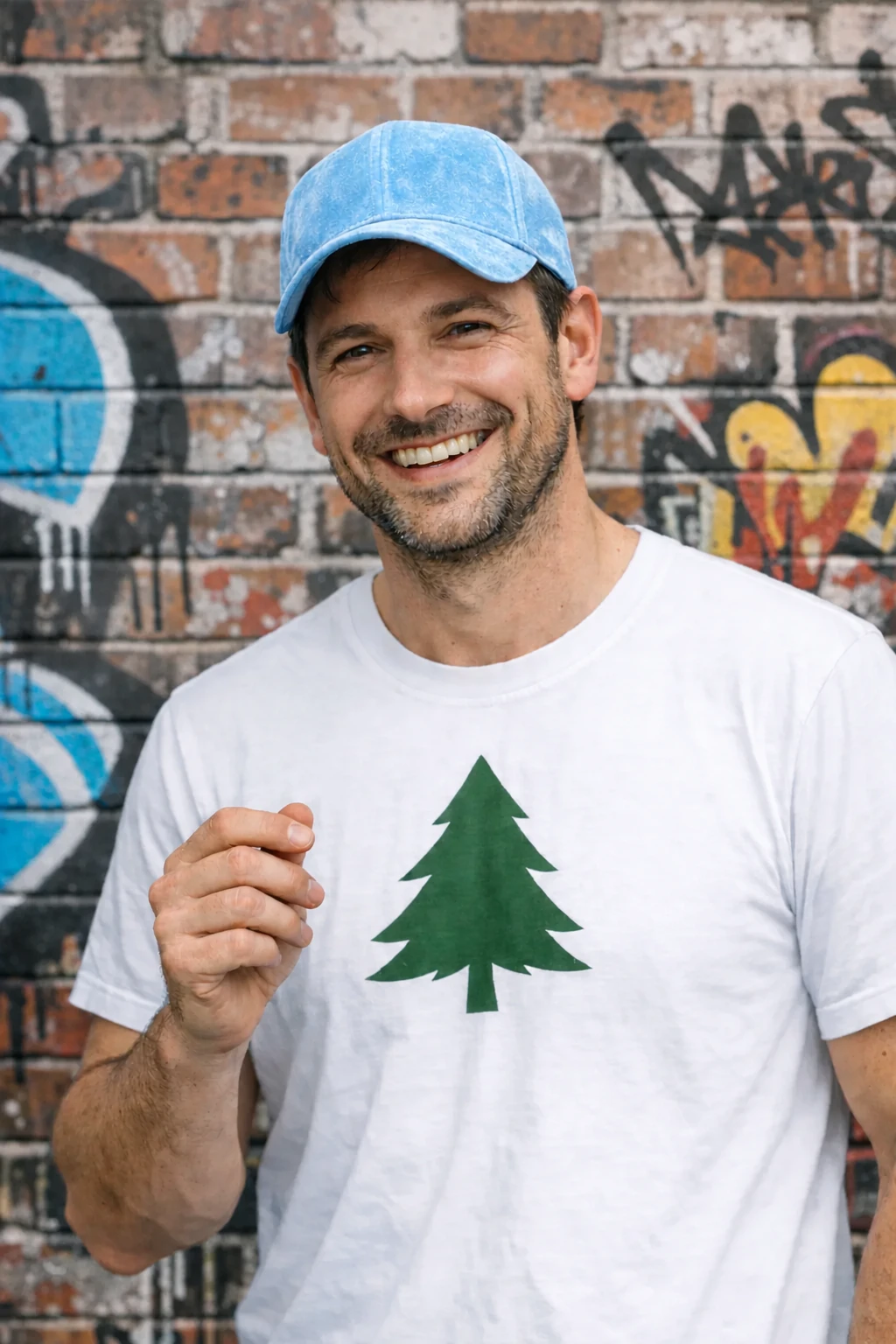
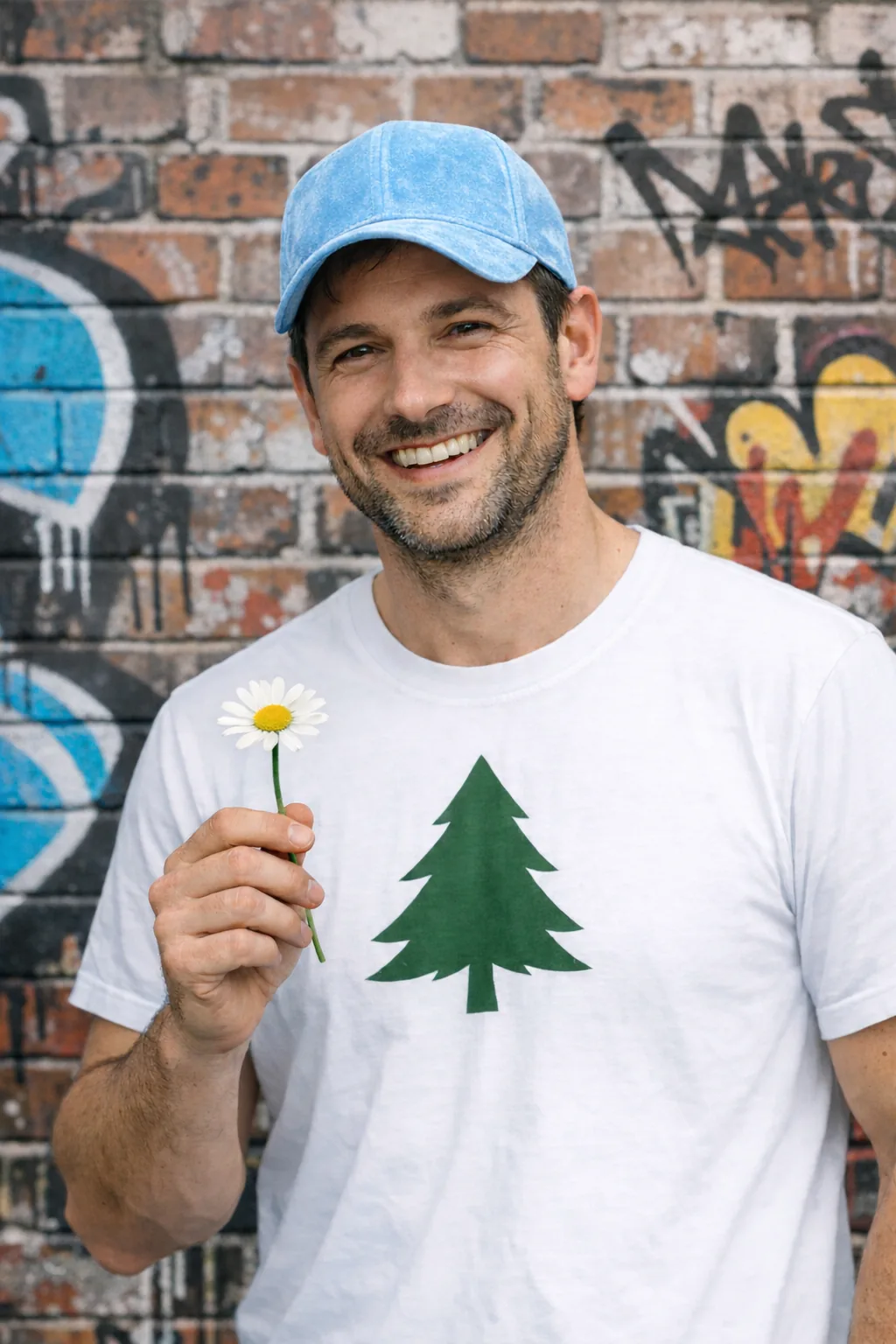
Remove one object, keep the scene
A distracting flower is removed without asking the model to redesign the person or surrounding composition.
BeforeAfter · Sunburst
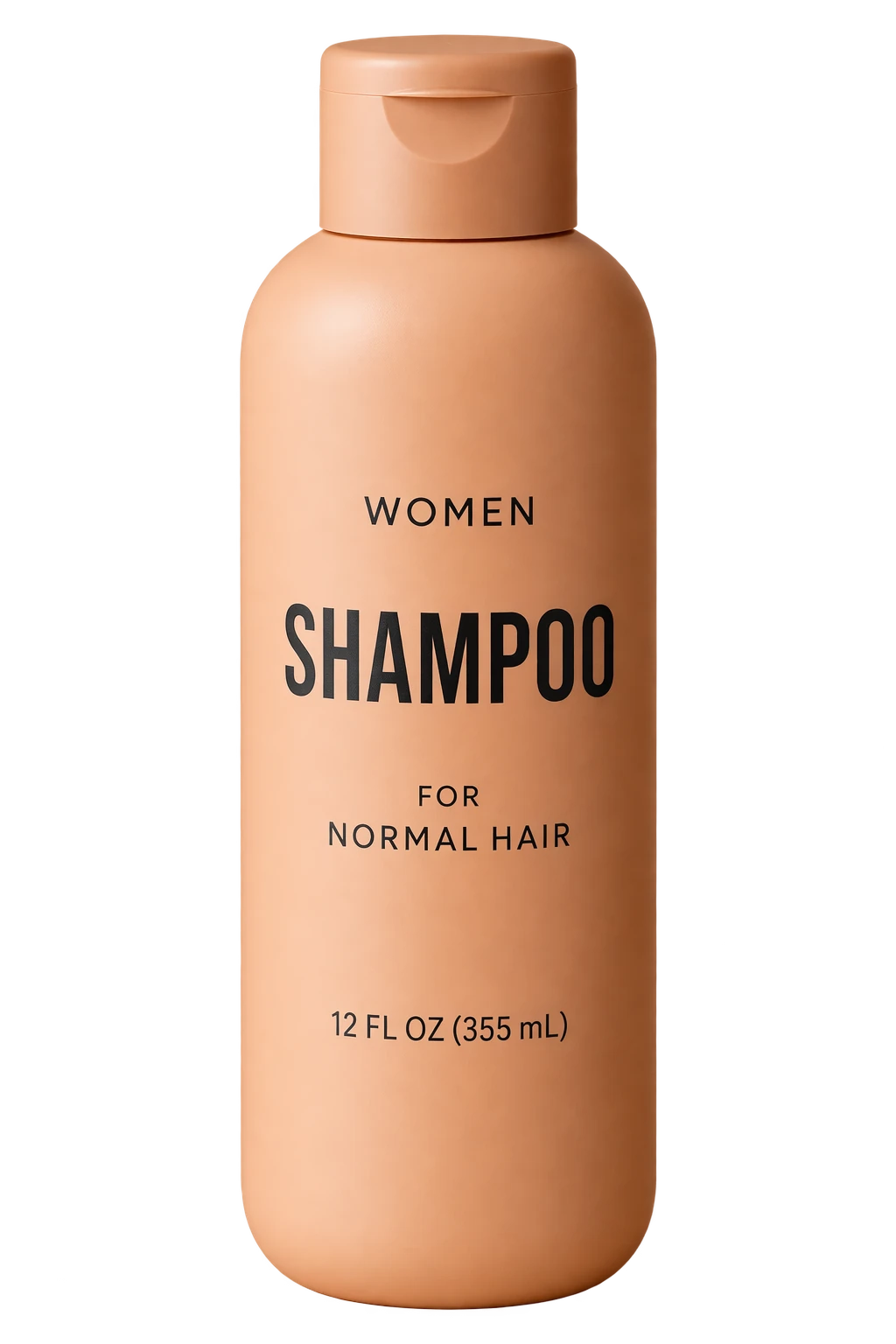
Extract a product without redesigning it
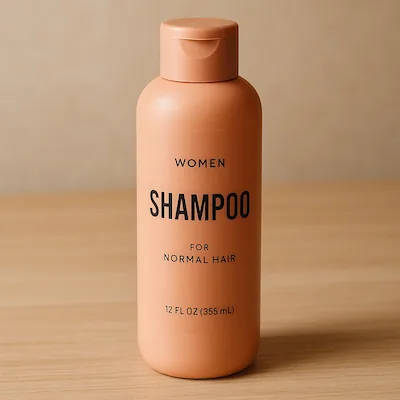
The shampoo bottle becomes a transparent production asset while its shape, cap, label and proportions stay intact.
Create. Edit. Make it yours.
Subjects stay recognizable
Reference-led transformations better retain a person's, pet's or product's distinctive features.
Edit only what you name
Change a product, background or line of copy while preserving the surrounding composition and treatment.
More stable across turns
Earlier edits are more likely to survive later instructions without cumulative quality loss.
Start with a sketch
Upload a rough drawing and describe the style, colors and lighting to develop your idea into a finished image.
Finish Work Faster With a Plan
One subscription, enjoy all the super agents! AI slides, deep research, AI docs, AI video and AI image
How it works
1
Upload a sketch or photo
2
Describe the result you want
3
Create and refine
GPT Image 2.5 FAQ
Do I need to upload an image?
No. Describe the subject, scene and style to create a new image. Upload a reference when editing a photo or following an existing composition.
Should I choose Flare or Sunburst?
Choose Flare when latency and scale lead the decision. Choose Sunburst when final quality and precise control matter more than generation time. Test both on your own workload.
How many reference images can I upload?
Click the plus button to open the selected model’s workspace and upload references there. Follow the format, count and size limits shown in the workspace.
How do I use Sketch to image?
Use the plus button to upload your sketch in the workspace, or choose the sketch template, describe the style and click Create to carry your prompt into the workspace.
How should I prompt for text in an image?
Put the exact text in quotation marks and specify its language, position and visual hierarchy. Check spelling and layout afterward; edit text-heavy images in stages.
How can I refine an image while preserving it?
Use your preferred previous version as a reference. Change one thing at a time and name what must stay fixed. For example: “Make only the jacket black; keep the face, pose and background unchanged.”
Where does Create take me?
Create opens the selected model’s workspace in your current language with your prompt. Upload references and complete sign-in and generation there.
How many credits does an image cost?
Check the credits shown for your selected model and settings in the workspace. Compare subscriptions in the plans section on this page; plan allowances and per-generation costs are separate.
Is masked editing pixel-perfect?
No. OpenAI describes a mask as guidance rather than a strict pixel boundary. Tell the model what should change and what must stay fixed.
What are GPT Image 2.5's known limitations?
OpenAI says complex prompts can take up to about two minutes. Text placement and clarity can still fail, recurring characters or brand elements may drift, and position-sensitive layouts can be inaccurate. Review outputs before production use.