
AI Christmas Pet Portraits: Keep Your Dog or Cat Recognizable
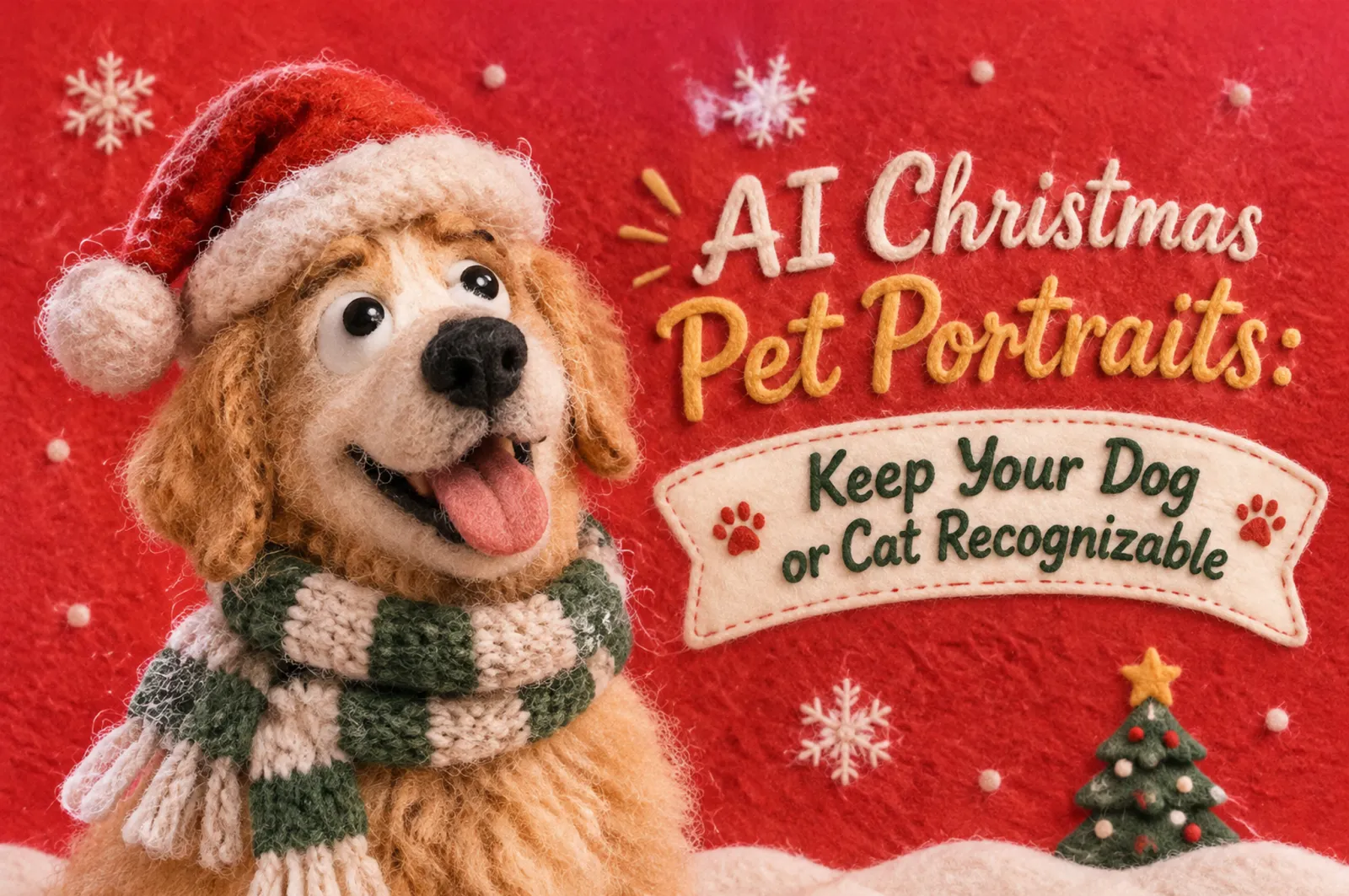
Create a Christmas portrait from your pet photo
A Christmas pet portrait should look like your dog or cat, not a similar animal in a Santa hat. A missing white paw, a different eye color, or a newly symmetrical face can make an attractive image feel wrong.
Start with a clear photo of your pet, change the setting in small steps, and compare the result with the original. The prompts below focus on holiday portraits for a profile picture, a framed gift, or a seasonal photo post. Greeting messages and card layouts belong in a separate design step.
What works best for a recognizable pet portrait?
Use the pet photo as the identity reference, keep its existing pose, and edit the background before adding accessories. Name the markings that matter, such as a white chest patch or a dark left ear. Prompts help guide the edit, but they cannot guarantee identical features. When exact likeness matters, retain the original pet in a composite and create the setting around it.
Choose a reference that shows your pet clearly
Use an original photo with visible eyes, readable fur texture, and an unobstructed face. Soft daylight is a useful starting point. A screenshot, heavy beauty filter, or motion-blurred face makes the reference harder to follow; increasing file size does not restore missing detail.
Write down three identifying details before editing. For example: a brown patch over the right eye, one folded ear, and white front paws. Describe left and right consistently from the pet’s perspective, or point to the feature in the reference if orientation might be confusing. If several references are supported, give each a role rather than mixing poses without explanation.
Choose a scene that fits the original pose
| Portrait direction | Best starting photo | Protect | Avoid |
|---|---|---|---|
| Cozy fireplace dog portrait | Seated dog with the whole head visible | Ear shape, muzzle, chest patch, paws | A hat covering the ears or a firelight color cast on the coat |
| Cat beside a Christmas tree | Relaxed sitting or lying cat | Eye color, whiskers, forehead and tail markings | A forced upright human pose or ornaments merged into whiskers |
| Quiet winter studio portrait | Clear head-and-shoulders reference | Face proportions, coat pattern, natural expression | Invented snow on the eyes or a completely redesigned coat |
A practical editing workflow in iMini
1. Upload and define the task. Open iMini’s image workspace and select a model that accepts reference images. Upload your pet photo and state that it is an edit of this animal, not a request for a generic breed portrait. Model options and controls vary, so use the settings actually available in your workspace.
2. Replace the setting first. Request one background and keep the pet’s existing head angle, body position, and expression. If your editor offers selection or masking, work outside the pet silhouette. Otherwise inspect the whole animal after generation: a “background only” instruction is still not a pixel lock.
3. Add one small holiday detail. Try a loose illustrated red scarf or a ribbon beside the pet, after the setting is acceptable. Leave ears, eyes, and paws visible. Asking for a new pose, new costume, new lighting, and a new background at once makes it harder to identify what caused a mismatch.
4. Compare and keep the best version. Put the original beside the edit. Inspect eye shape, nose, ears, coat boundaries, paws, tail, and contact shadows. Save a satisfactory version before another change; if the face drifts, restart from that version or the source rather than repeatedly repairing a distorted face.
5. Check the final crop and download. A square crop works for many avatars; a vertical crop may suit a photo post or frame. Treat these as composition choices, not guarantees that the model will export an exact size. Check the actual downloaded dimensions, then follow the printer’s size and resolution requirements for a framed gift.
Copyable Christmas pet photo prompts
Replace the bracketed features with details visible in your photo. Use one scene prompt at a time, and keep the reference attached when continuing an edit.
A dog beside a fireplace
Edit the uploaded dog photo into a realistic Christmas portrait. Use this exact dog as the identity reference. Preserve its current pose, face proportions, eye color, ear shape, muzzle, [white chest patch], and [white front paws]. Replace only the setting with a softly lit living room, a distant Christmas tree, and a fireplace in the background. Keep the dog unobstructed and its coat colors natural. Add believable contact shadows. No text, extra animals, new limbs, or costume.A cat beside a Christmas tree
Use the uploaded cat photo as the reference for this same cat. Keep its existing body position, [green eyes], [forehead stripes], [white chin], whiskers, and tail pattern. Create a quiet Christmas setting with warm tree lights behind the cat and a folded blanket under it. Keep the face and fur sharp, with soft background blur. Do not put decorations across the eyes, ears, or whiskers. No text or additional pets.A simple winter studio portrait
Create a restrained winter studio portrait by editing the uploaded pet photo. Preserve the animal’s identity, natural expression, existing head angle, [distinctive marking], and coat texture. Use a pale cream background with a subtle evergreen branch at the edge of the frame and soft studio light. Keep the original pet proportions. Leave some space around the ears for cropping. No snow on the face, no hat, no lettering, and no humanlike pose.Repair one detail
Compare the current edit with the original pet photo. Correct only [the missing white patch on the front paw] to match the reference. Keep the accepted background, lighting, composition, and all other pet features unchanged. Do not redesign the face or add accessories. If this detail cannot be matched reliably, preserve the original pet area in the final composite instead.Common problems and the smallest useful fix
| Problem | Try this next | Accept only when |
|---|---|---|
| The pet looks like the right breed, but a different animal | Restart with the source and list three visible identity details | Eyes, muzzle, ears, and markings match the reference closely enough for your use |
| A scarf or hat changes the silhouette | Remove that accessory and keep decorations in the background | Ears, neck outline, paws, and fur boundaries remain natural |
| Orange lighting changes the coat color | Ask for neutral light on the pet and warm lights only behind it | The original coat color is still recognizable |
| Repeated fixes make the face less familiar | Return to a saved good version or retain the original pet in a composite | The animal remains recognizable at full size and in the final crop |
Frequently asked questions
Can I make a Christmas portrait of my own dog or cat?
Yes. Use a clear pet photo as the reference and request a limited scene edit. Inspect the result against the original before sharing or printing.
Can AI preserve my pet’s exact markings?
It may reproduce them, but exact preservation is not guaranteed. Name important markings and keep the original pet area in a composite when exact likeness is essential.
Do I need to photograph my pet wearing Christmas clothes?
No. Start with a normal photo. A holiday background or a small edited accessory can provide the seasonal look without a new photo session.
How do I put two pets in one Christmas photo?
Use clear references and identify each animal separately. Define their positions and keep one accepted composition before refining details; check that markings have not transferred from one pet to the other.
Which model should I use?
Choose an image model that supports reference-photo editing in your current workspace. Test one modest change and judge likeness, fur detail, and edit control before investing in a longer sequence.
Can I print the portrait?
Check the downloaded file’s dimensions and the printer’s required final size, effective resolution, and crop. A sharp screen preview or an upscale alone does not establish print quality.
Continue with a different holiday project
For greetings and layout, use our Christmas card guide
For an empty seasonal scene, explore Christmas backgrounds
For more editing tasks, follow the photo editing workflow
Reference for the editing approach
Google’s official image-editing guide explains reference inputs and specific edit instructions, and notes that character consistency can vary. The original prompts and pet-checking workflow above apply those principles to Christmas portraits; they are not a promise of identical results across models.