
AI Thanksgiving Invitations: Turn a Family Photo into a Dinner Invite
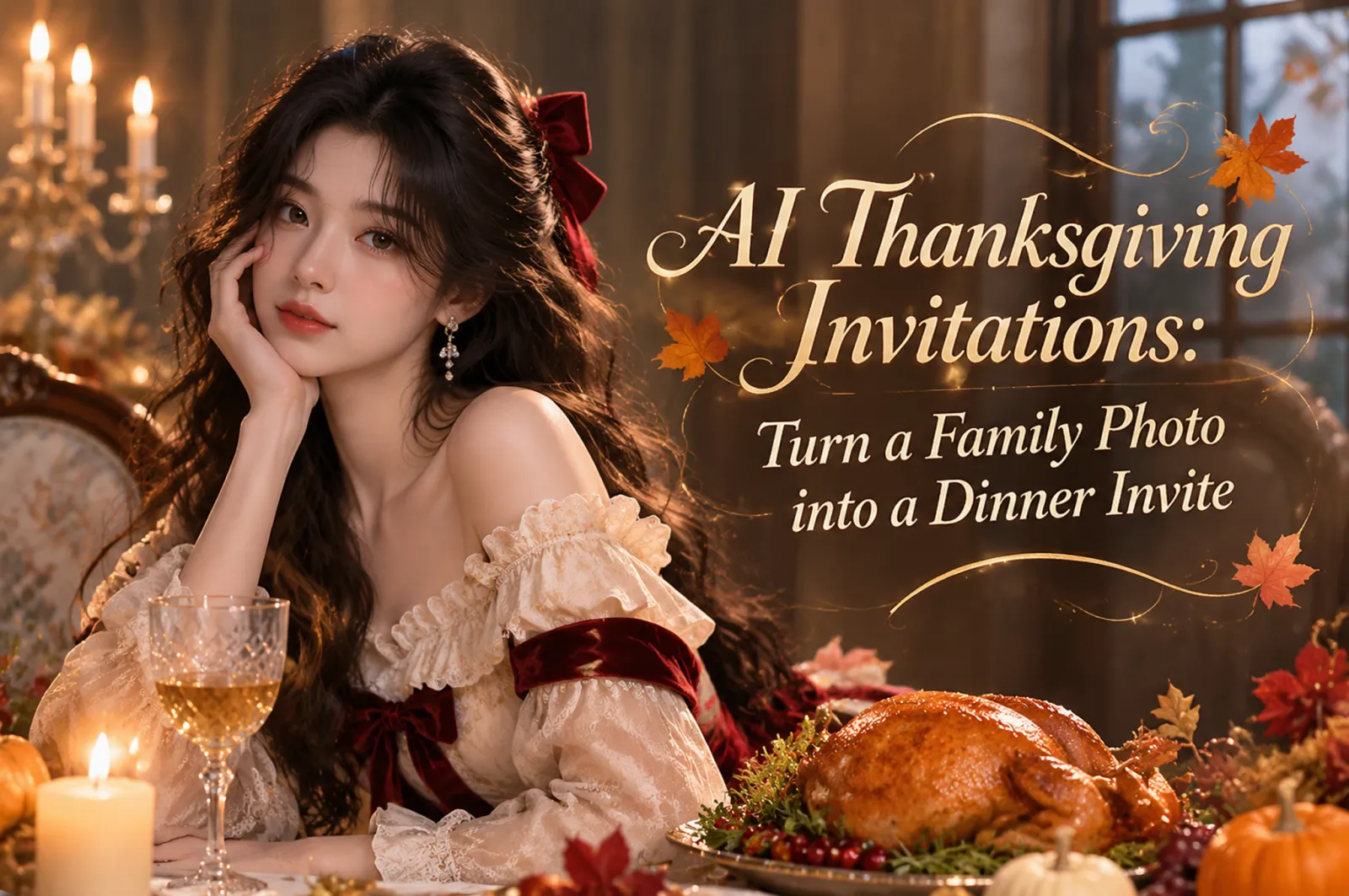
Create your Thanksgiving invitation artwork in iMini
A dinner invitation needs to tell guests where to go before it shows them how beautiful autumn can look. A family photo makes it personal, but a regenerated face, a tiny address or the wrong dinner time can spoil the result. Use AI for the visual setting, keep the important details under your control, and finish with an invitation that is easy to read on a phone. This workflow also works for a casual Friendsgiving with a photo of your group.
The practical approach
Prepare an authorized photo, create an autumn layout with a clear area for wording, then add the confirmed event details as editable text in a design editor. Compare faces with the original and test the exported image at chat-message size. An AI-generated JPG or PNG does not automatically collect RSVPs or create clickable links.
Choose the occasion and confirm the date
For a U.S. Thanksgiving dinner in 2026, Thanksgiving Day is Thursday, November 26, according to the U.S. Office of Personnel Management holiday calendar. Friendsgiving can be on a different day: print the date you actually chose, not the holiday date by default. Canadian Thanksgiving follows a different calendar, so confirm the country as well as the year.
Write down the host, arrival time, meal time if different, location, reply deadline and reply method before designing. Include a time zone when guests will join remotely. Keep a private home address out of public social posts; send location details directly to the invited group.
Step 1: choose a photo that can survive the crop
Use a photo you have permission to edit and share, with faces in focus and space around the people. Check how many guests appear and whether hands or faces touch the edge. For a group photo, a slightly wider crop is easier to place than one that already cuts off shoulders.
Decide whether you want a redesigned scene or exact preservation. If every face must remain identical, keep the original photo as a separate layer and generate only an empty decorative background. A prompt asking for unchanged faces reduces ambiguity; it does not guarantee identity preservation.
Step 2: make the artwork in iMini
Open the linked iMini image workspace. The GPT Image 2.5 Flare workspace provides reference-image upload and a prompt field; check the selected model and current input requirements before starting. Upload the authorized photo and request one composition, such as a group at the bottom with a quiet cream-colored area above.
Describe the lighting, amount of decoration and area that must stay clear. Ask for no lettering at this stage so an invented date does not become part of the artwork. The prompts below are task briefs, not guarantees of exact faces, empty areas or output dimensions.
If the result changes a face or loses a person, return to the original. Use a background-only generation and place the unmodified photo in a layer-based editor. Do not keep regenerating an already altered face and assume it will recover the source.
Step 3: add the wording as editable text
In a design editor, put the event name first, then the date and time, then location and RSVP instructions. Warm brown or dark green text on a quiet light area is often easier to read than thin gold lettering over leaves. Use a short heading and a few clear lines rather than a long decorative paragraph.
Replace every placeholder in the wording block below. Add a small note for a potluck or dietary questions only when it changes what guests need to do. For a bilingual invite, use two short text groups and check line breaks in each language instead of squeezing both into one crowded paragraph.
Step 4: export and test the actual message
For a phone-first layout, a 4:5 portrait canvas such as 1080 × 1350 pixels is a useful starting point, not a universal platform requirement. Export a PNG or JPG and check the actual dimensions. Send a test to yourself through the app your guests will use; compression and previews can make previously readable wording too small.
Open the received image and confirm the date, address and reply method without zooming. Put a plain-text copy of the key details and any RSVP URL in the accompanying message. A URL drawn into an image is not reliably clickable. For printing, use the printer’s size, bleed and resolution requirements and inspect a proof rather than simply enlarging the phone image.
Pick a layout for the invitation
| Occasion | Layout | Artwork brief | Final check |
|---|---|---|---|
| Family dinner | Photo below, wording above | Warm neutral background with a clear upper area | Every person remains present and recognizable |
| Friendsgiving potluck | Small group photo beside a short text column | Relaxed autumn colors and minimal table details | What to bring and how to reply are clear |
| Bilingual gathering | Photo plus two separate text groups | Quiet background and extra space for line breaks | Both languages give the same date and location |
| Exact-photo keepsake | Original photo layered over a generated border | Background only, no generated people or lettering | Faces are original and decoration does not cover them |
Copyable prompts and invitation wording
Family-photo invitation artwork
Use the uploaded authorized family photo as the reference for a Thanksgiving dinner invitation layout. Keep the same people, their recognizable features, expressions and clothing. Place the group in the lower half without cropping faces or hands. Use warm cream, muted terracotta and restrained autumn leaves at the outer corners. Leave a large quiet light area above for text that I will add later. Match the original light direction. Do not generate lettering, dates, addresses, extra guests or objects covering faces. I will compare the result against the original.Background only for exact photo preservation
Create only an empty Thanksgiving invitation background for a portrait 4:5 composition. Use a warm ivory paper-like surface, a narrow muted-rust border and small autumn leaves in two corners. Leave the center and upper half clear for editable wording and an original family photo that I will place separately. No people, faces, letters, numbers, logos or watermark. Do not draw a fake photo inside the frame.One controlled revision
Revise only the decoration in the upper-right corner. Reduce the leaves and keep the wording area plain and light. Keep the approved photo area, layout, colors and all other details unchanged. Do not add text or redraw the people. If the photo changes, I will restore the original photo layer.Wording to edit before sending
Join us for Thanksgiving dinner
[Weekday, month and day] at [time and time zone if needed]
Hosted by [name]
[Venue or privately shared address]
Please reply to [contact or RSVP link] by [deadline]
[Optional: what to bring or dietary questions]
Common mistakes to avoid
Do not ask one generation to solve faces, complex decoration and exact event wording at once. Approve the artwork first, then add and proofread the text. Keep the editable source so a changed dinner time does not require regenerating the photo.
Avoid fake buttons, QR-like decoration and decorative URLs that guests cannot use. If you add an actual QR code with another tool, scan the final exported version and check the destination. Keep the full invitation in the message as well, so guests can copy details or use assistive technology.
Frequently asked questions
Can I make a Thanksgiving invitation from a family photo?
Yes. Use a reference-photo workflow for the artwork, then verify the people and add the event details as editable text.
When is U.S. Thanksgiving in 2026?
Thursday, November 26. A Friendsgiving dinner can take place on another date chosen by the host.
Which AI model should I choose?
Start with an available image editor that accepts your reference photo. Check the actual selection in iMini and compare outputs; this workflow does not require a rumored or unreleased model.
Can a prompt guarantee unchanged faces?
No. If exact preservation matters, keep the original photo layer and generate only the surrounding artwork.
Will the invitation image collect RSVPs?
No. Include a reply contact or a separate working RSVP link in the message, or use an event service.
What is the best image size?
Choose the size for the delivery channel. A 4:5 portrait layout is a practical phone starting point; check the exported file and a real received message. Use printer specifications for print.
Finish the photo and wording
Photo editing and revision workflow · Fix lettering and layout · Understand cropping and image resizing