
The Ultimate Guide to Text to Image Prompt
December 15, 2025
AI image generation changed the way everyone creates art and design visuals. AI image generator cannot create stunning images without on key ingredient - the prompt.
A well-crafted prompt can transform your imagination into stunning, high-quality visuals. In this guide, you’ll learn what text-to-image prompts are, how to write better ones, how to generate images from text prompts at iMini and discover examples to spark your next creative inspiration.
What is AI Text Prompt?
An AI text prompt is written description that tells the AI tool what kind of image or video you want to generate. The quality of your text prompt directly influences the image outcome - from the overall effect to the smallest visual details.
A well-crafted prompt helps the AI understand your vision clearly, producing more accurate and creative results. If you tell AI image generator vague or random prompts, you’ll often get the poor or irrelevant results.
To unlock the full potential of AI tools and create stunning, high-quality visuals, learn how to craft and optimize your text-to-image AI prompts the following content.
AI Image Prompting 101: The Guide to Writing Text to Image Prompts
To generate the best AI images, follow this simple yet powerful prompt formula: Subject+Motion+Artistic Style+Details+Enhanced Keywords.
- Subject: Define the focus
- Motion: Describe the emotion or action of the subject
- Perspective/Framing: Specify how you want the image to be viewed. Mention the medium, camera angle, distance, or composition to make your prompts more professional.
- Details: Optimize your prompt with descriptive details like environments, lighting, weather, and atmosphere.
- Artistic Style: Choose the artistic style to set the tone and visual aesthetic like the style of Photographic, Anime, Oil paint, or pencil sketch, or the specific artistic style like “in the style of Van Gogh” or “in the style of Pablo Picasso ”.
- Enhanced Keywords: Include technical or enhancement keywords like “4K resolution”, “high contrast” for high-quality outputs.
1. Subject - Define the Focus
A clear subject is the key point of an AI-generated image, which can attract people at their first sight. The main subject can be the character, animal, object, or the scene. Make sure the subject is concise, clear, and accurate. The more specific your description, the better the AI understands your intent and delivers accurate results.
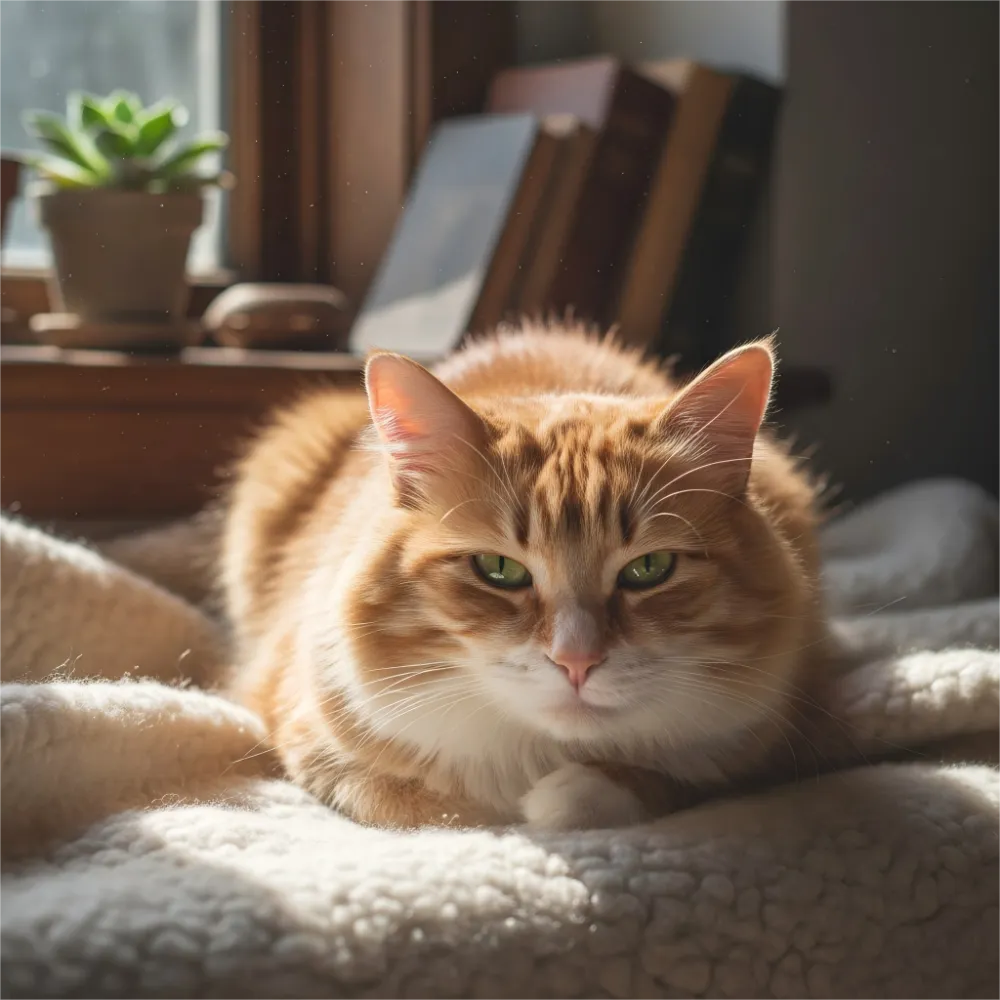
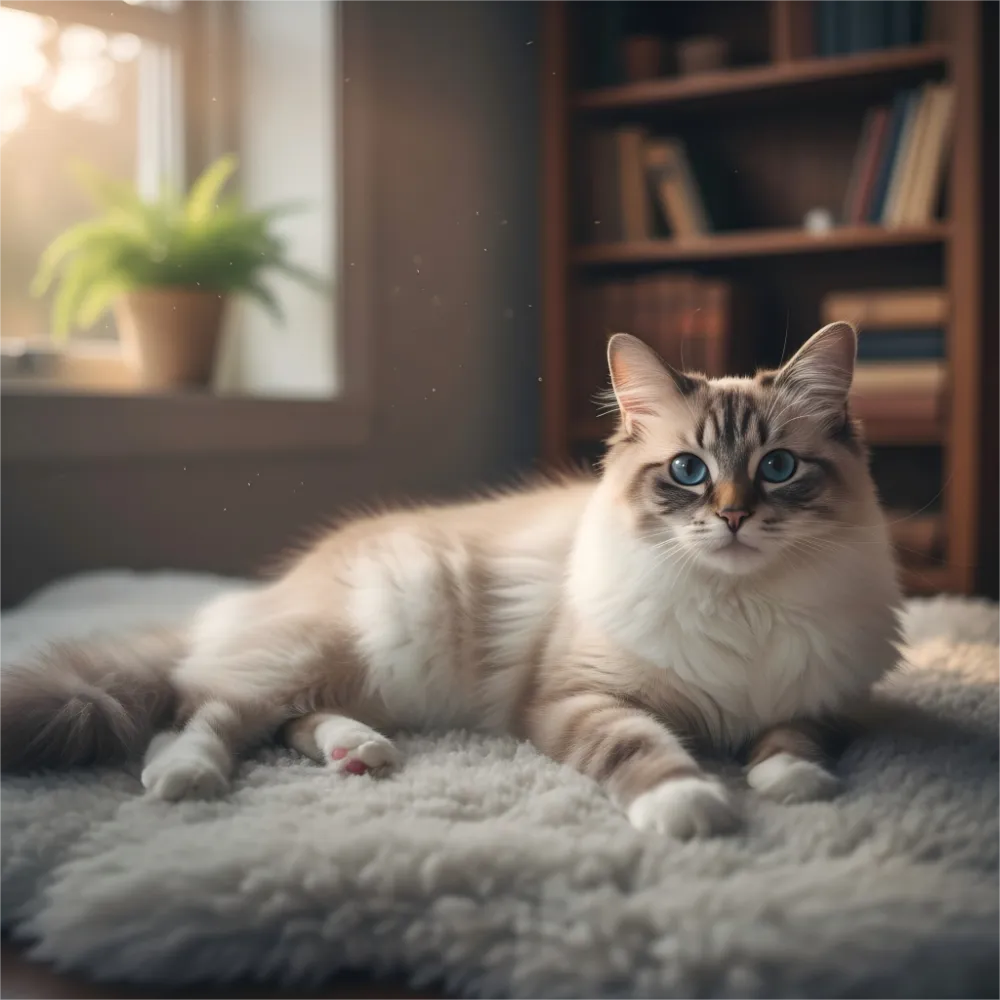
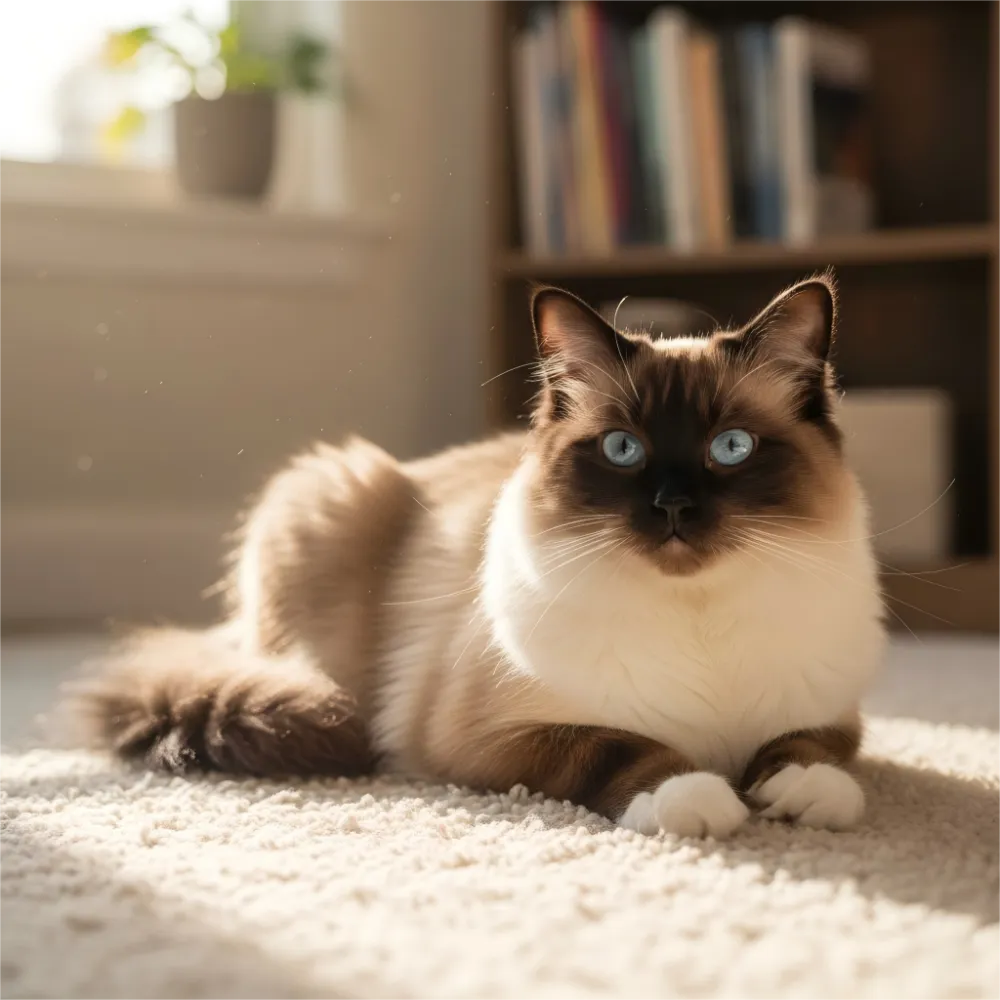
For example , tell the AI the subject “Chocolate Point Ragdoll” rather than “Cat” or “Ragdoll”. The first image was generated using the prompt “a cat.” The second image uses the more specific prompt “ragdoll,” while the third image is created with the highly detailed prompt “chocolate point ragdoll.”
Describe your subject’s shape, size, pose, and how it is positioned. Use modifier words to refine the image. In short, a well-defined subject ensure your AI-generated images is accurate, clear, and engaging.
Prompt Example: A fluffy chocolate point ragdoll cat wearing a cute red Christmas hat, lying beside a large decorated Christmas tree with ornaments and lights.

2. Motion - Add Action or Emotion
If your subject involves action or emotion, add it to your text prompt. Adding movement or emotion to your subject brings your image to life, which makes the AI understand what’s happening for more dynamic, storytelling, and realistic images.
Here are the comparison of images generated with different prompts:
- Static: a train
- With Action: a train moving through the city
- With Action and Emotion: A glowing train rushing through a city at night
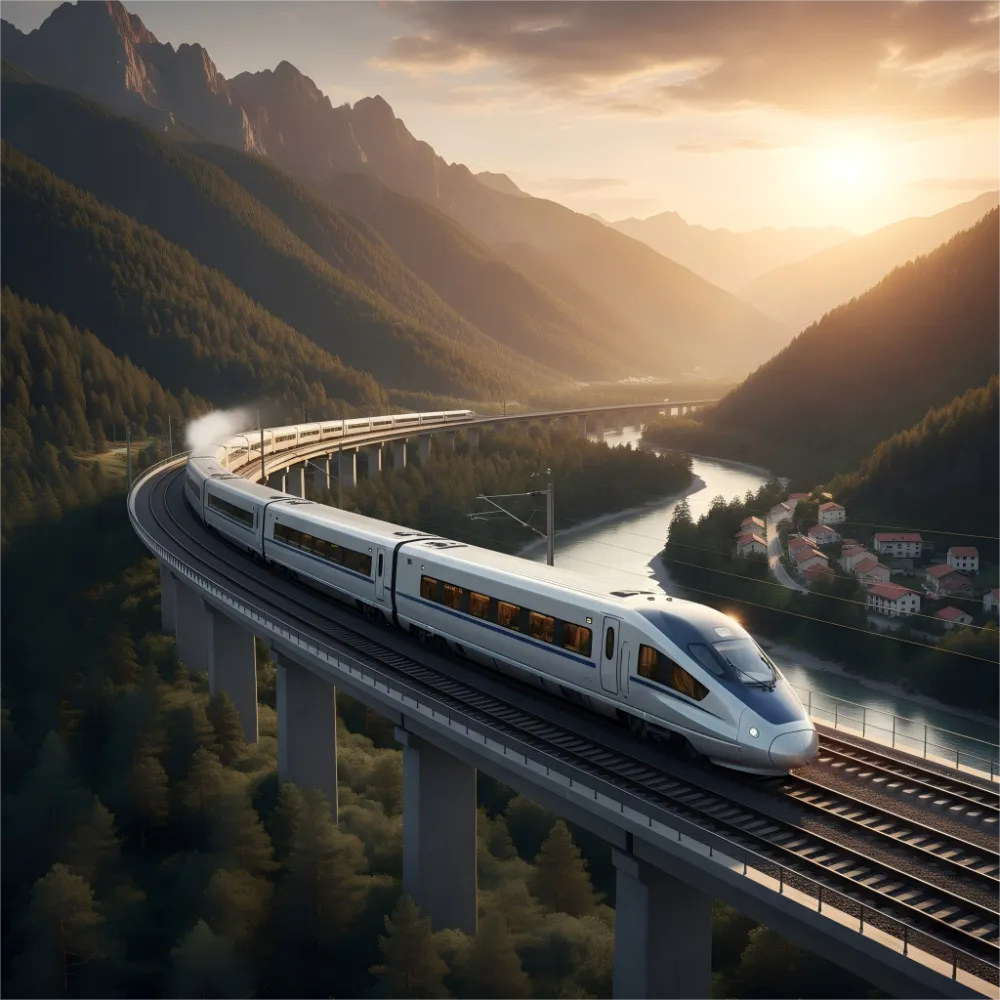
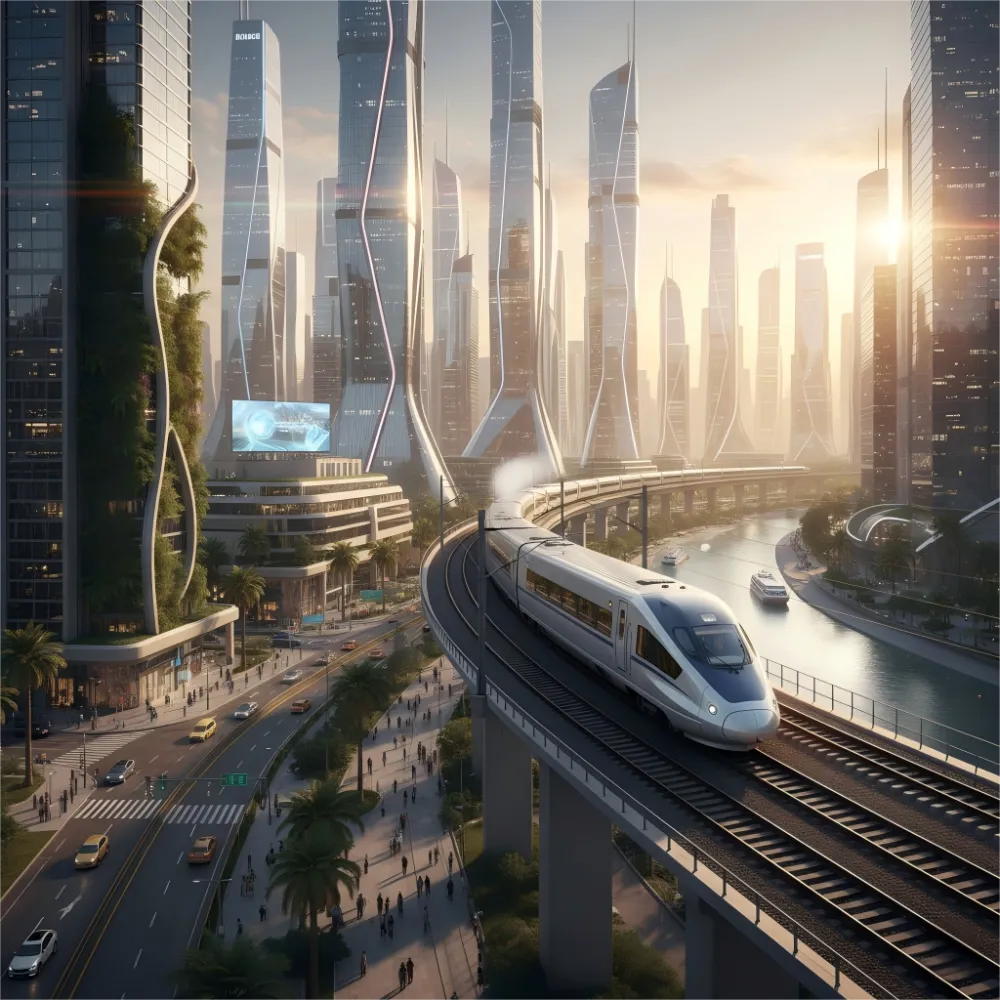
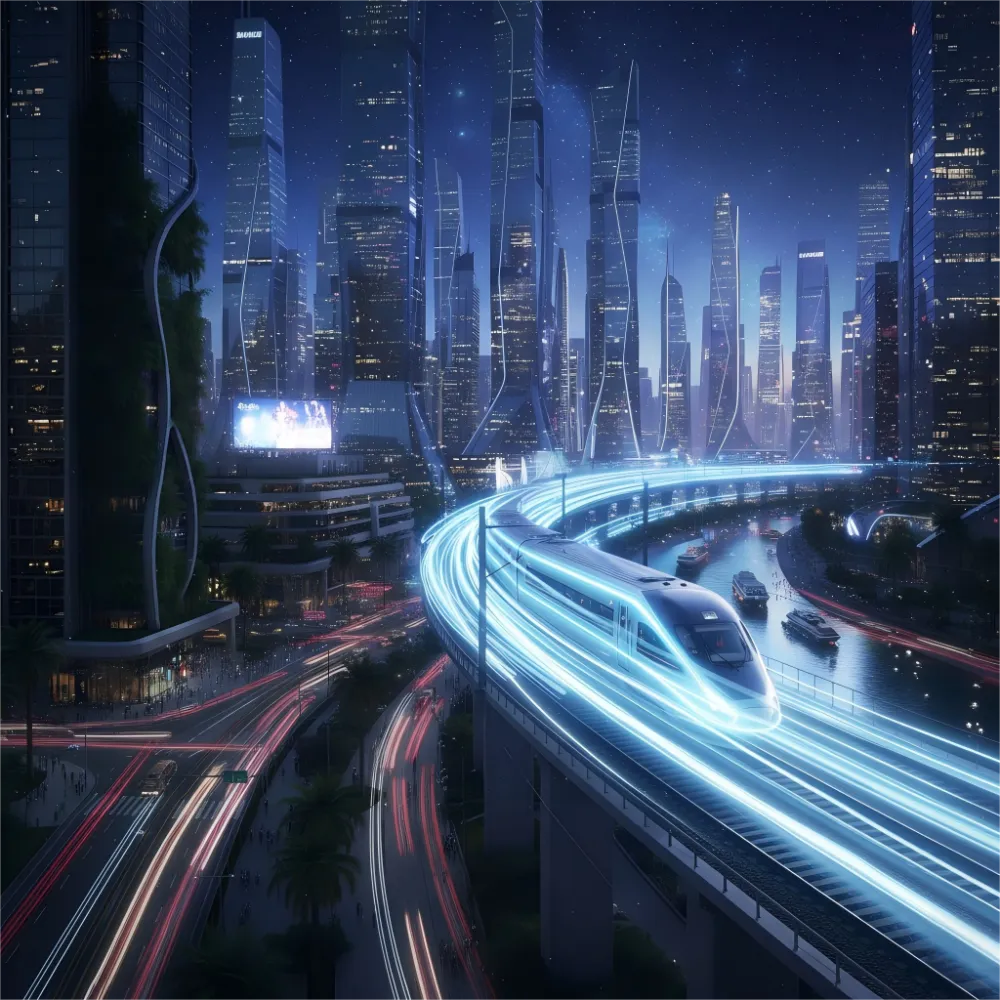
3. Perspective and Framing - Set the Perspective
Perspective and framing define how viewers experience your image. By adjusting the camera distance, angle, and focal length in your prompt, you can change the mood, atmosphere, and storytelling of your AI-generated image. A wide shot captures more of the environment, while a close-up shot highlights fine details, expressions, and textures. Different viewing angles - such as top-down, eye-level, or low-angle - also influence the image’s emotional tone. The focal length affect the image depth, helping the AI determine how much of the scene stays sharp or blurred.
Here are some examples:
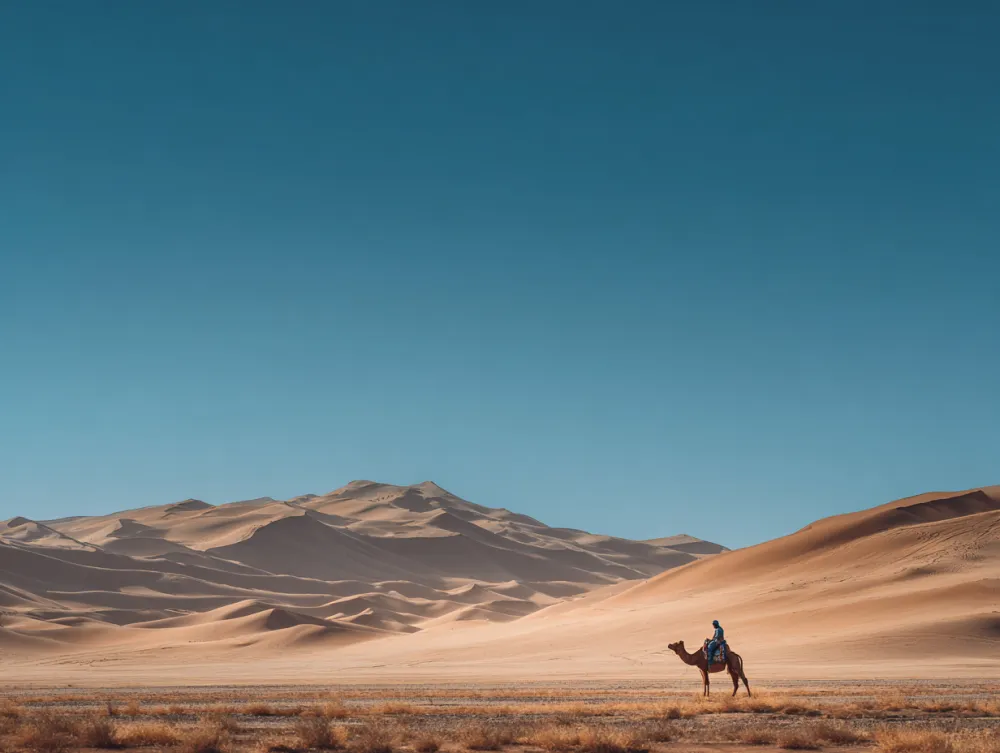
Long Shot
A long shot of a traveler riding a camel across golden desert dunes under a clear blue sky.
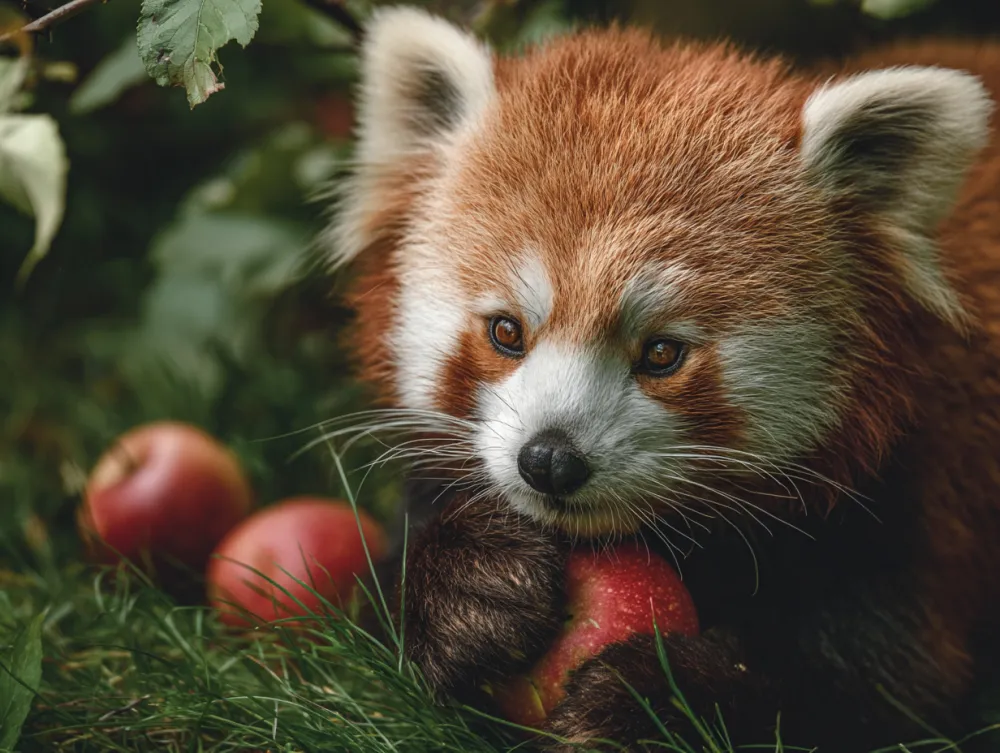
Close-up Shot
A close-up shot of a red panda sitting on green grass, happily eating red apples.
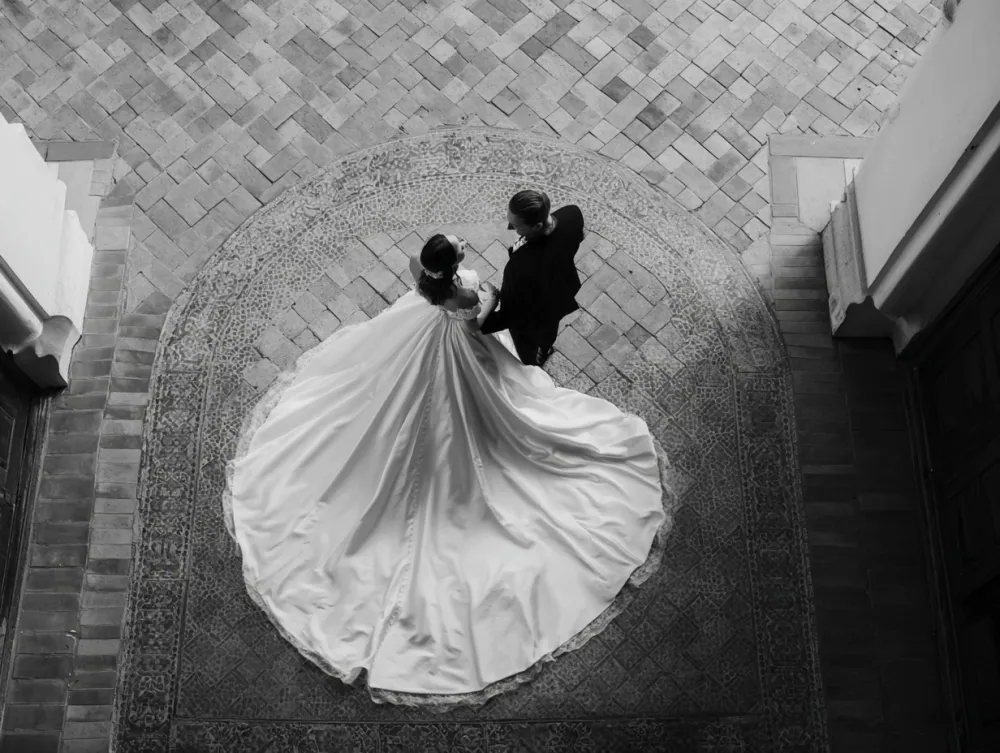
Top-down
Top-down view of a bride in a white wedding gown and a groom in a black suit standing together in front of a church.
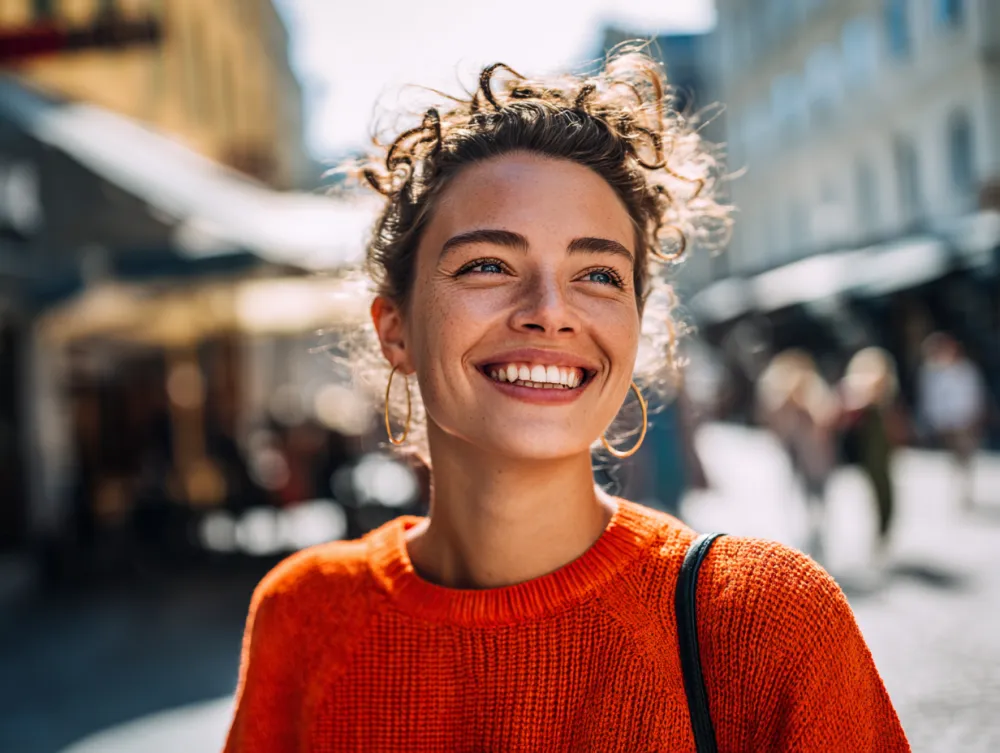
Eye-level
Eye-level portrait of a joyful woman smiling brightly on a lively street.
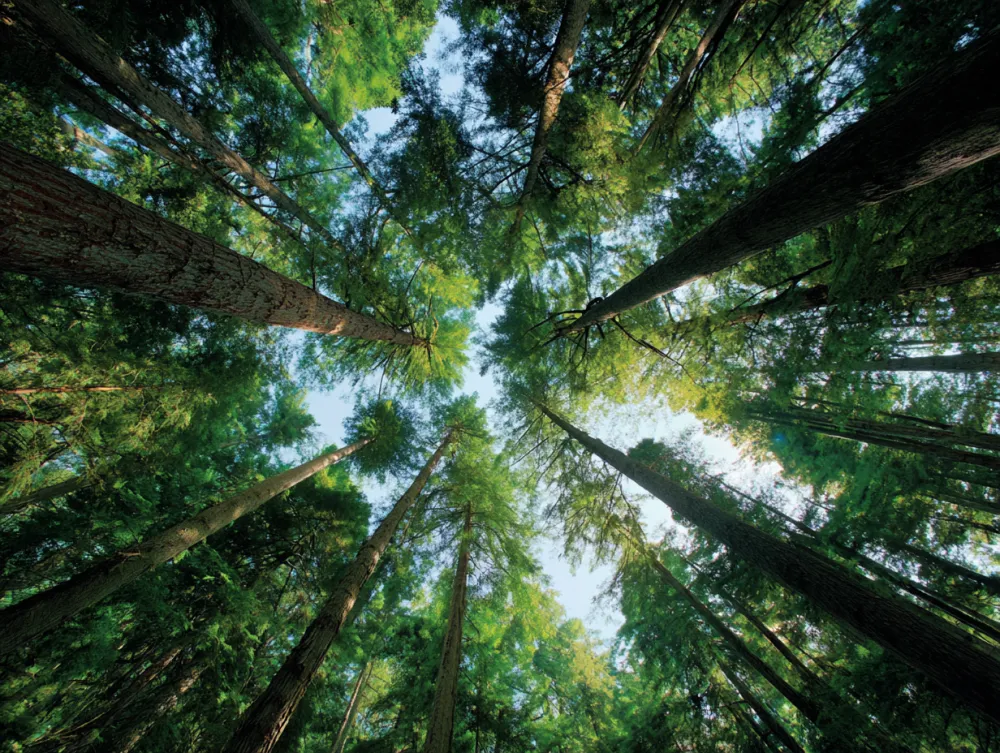
Low-angle
Low-angle view of a dense forest, tall trees towering overhead.
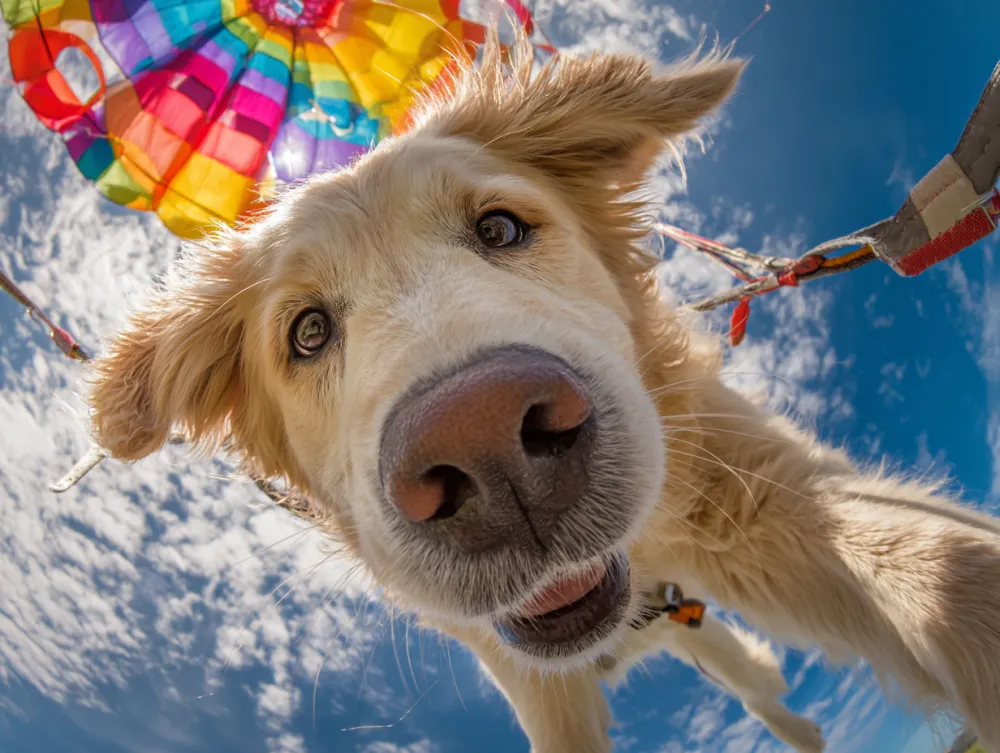
Fisheye Lens
Fisheye lens, medium close-up of a cute golden retriever flying joyfully in the sky with a colorful parachute.
4. Details - Add Depth and Atmosphere
Providing a detailed description of the location and environment to help AI generate the relevant landscape, architecture, or atmosphere you want to create. Is your scene a sunny beach lined with palm trees, or a vast desert dotted with cacti and flowing sand? Environmental details like lighting, weather, shadows, fog, and texture can largely influence the tone and mood of your AI-generated image.
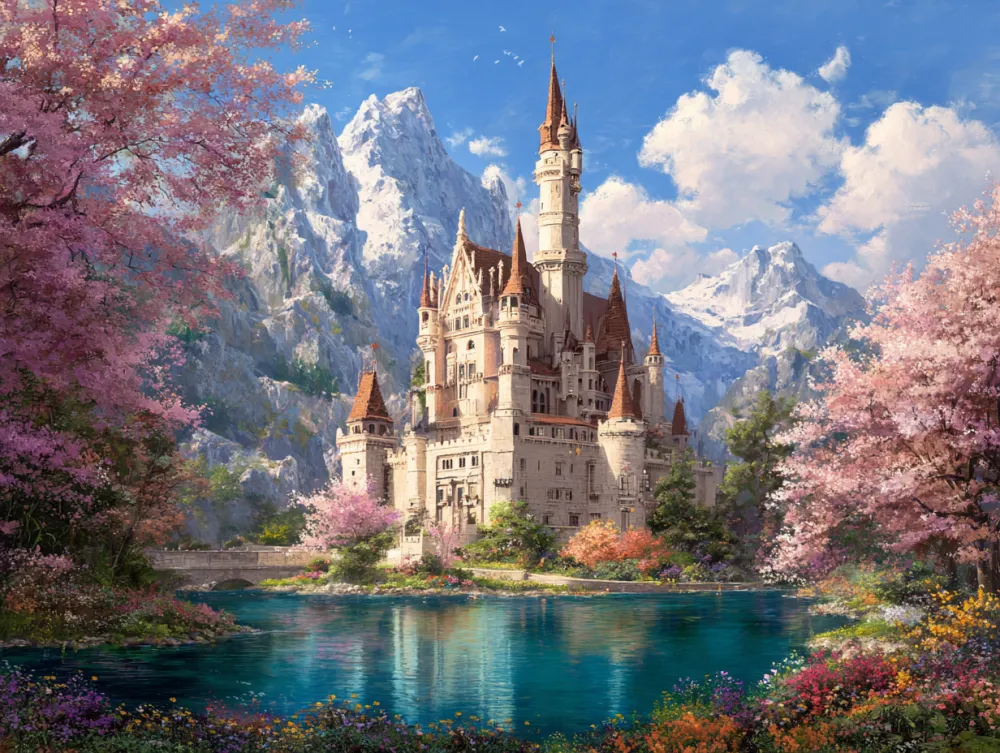
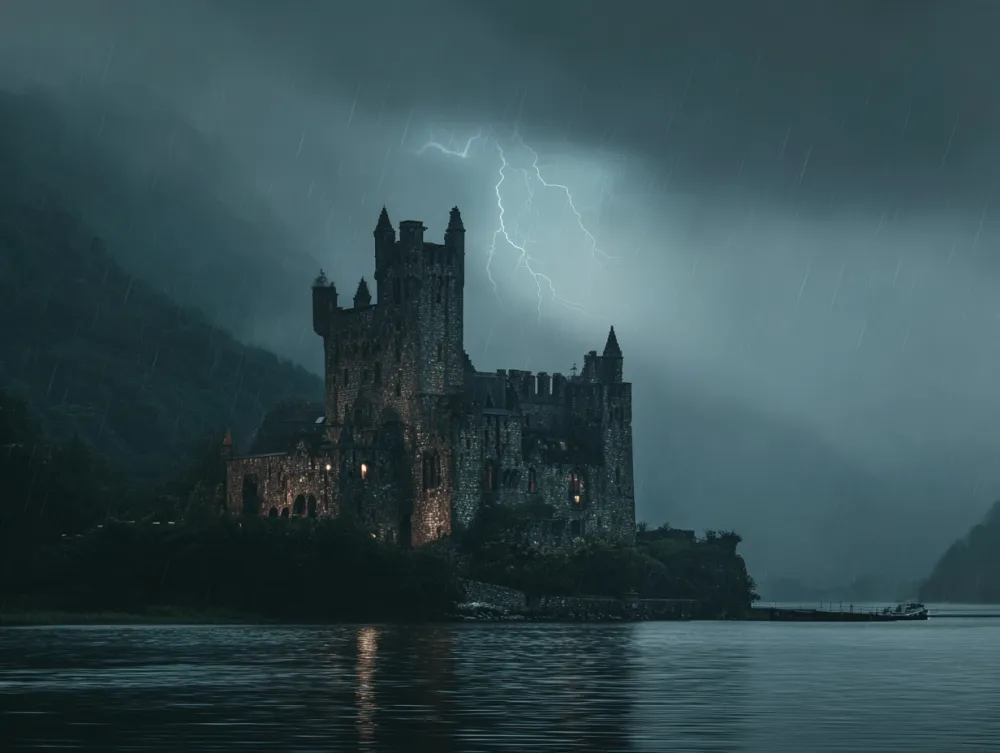
For professional, realistic results, pay attention to how each element interacts within the scene. For example, you need to pay attention to the placement of light and shadow, and the balance of foreground and background for creating a visually amazing AI image. Take a look at the two images below — the differences are instantly noticeable.
Prompt A: A charming fairytale castle standing beside a crystal-clear lake, surrounded by blooming flowers under a bright, sunny sky.
Prompt B: A decaying medieval castle by a shadowy lake under pouring rain, surrounded by fog and lightning flashes, haunting nighttime mood.
5. Artistic Style - Define the Feel
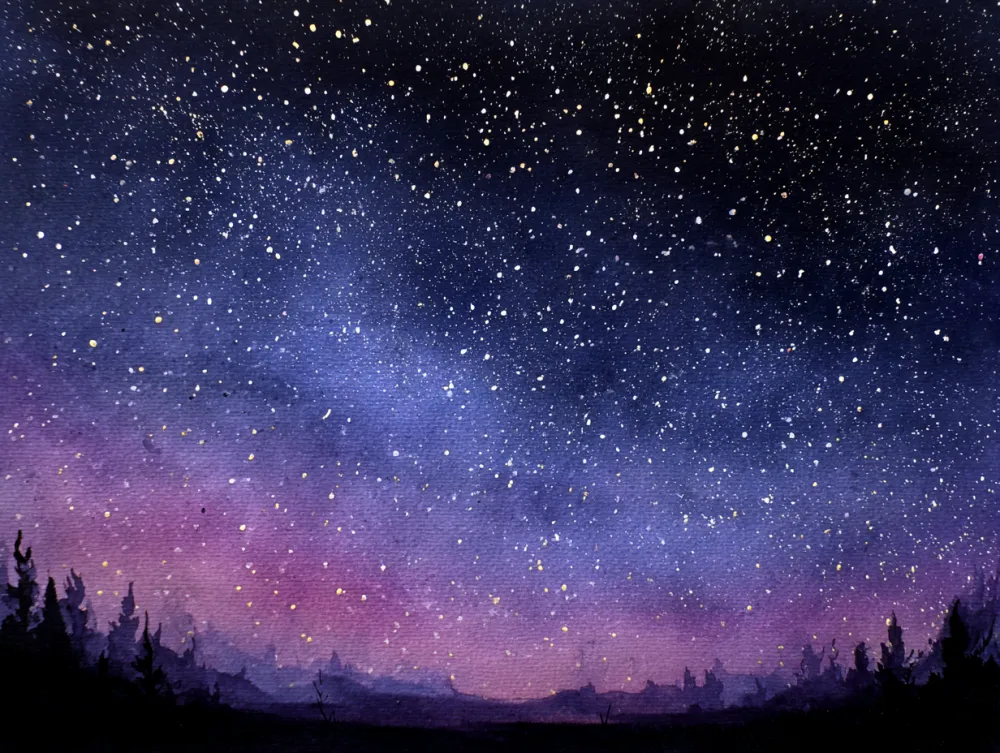
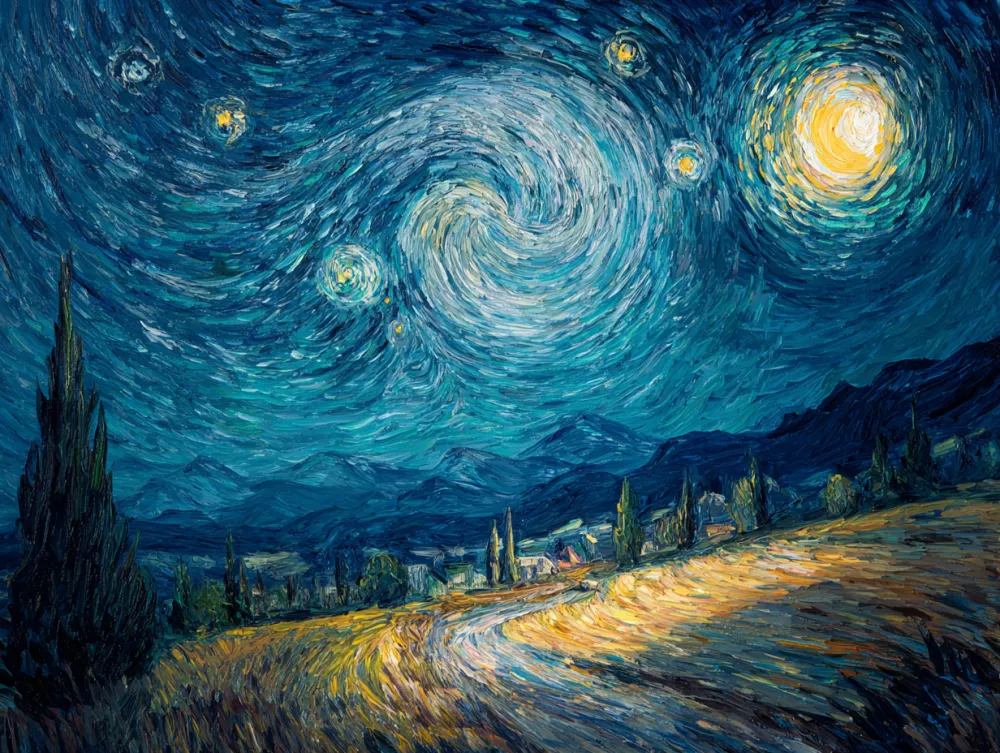
Defining the artistic style is crucial for guiding the AI to produce your desired visuals. AI models can generate images in a wide range of styles - from photorealistic photography to watercolor painting images. It can also mimic the techniques of famous artists, such as Vincent van Gogh’s expressive brushstrokes or Pablo Picasso’s abstract style.
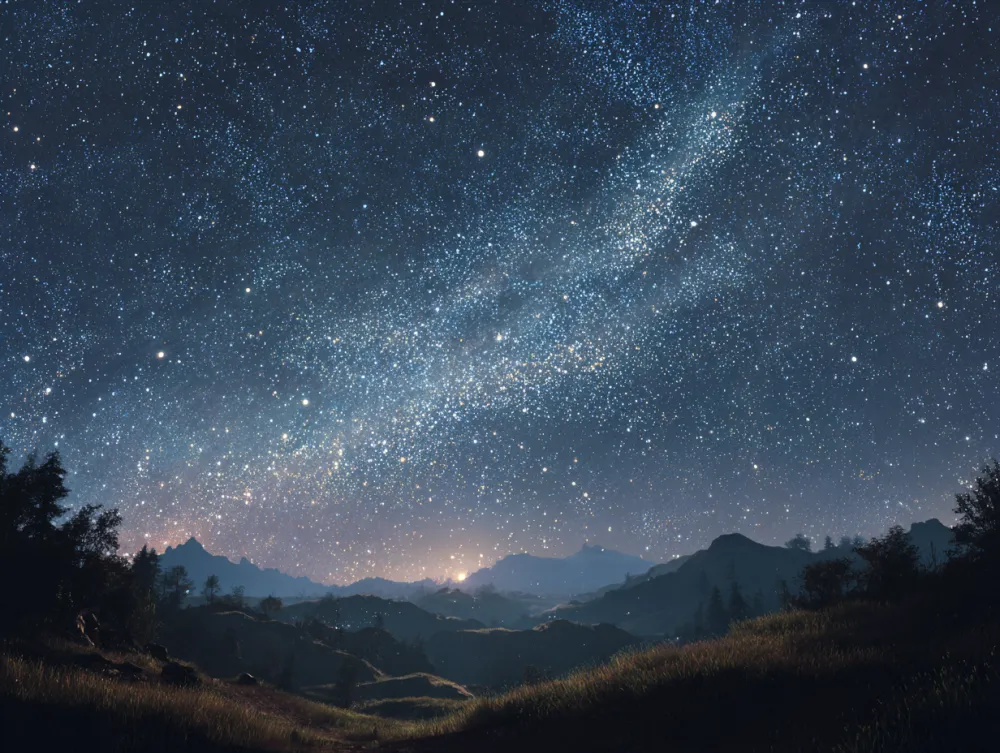
Here are a few examples to help you appreciate how different styles can transform the same concept into completely unique visuals.
Prompt A: A breathtaking starry night sky captured in realistic photo style, countless stars twinkling above a quiet landscape, soft moonlight, high-detail realism.
Prompt B: A breathtaking starry night sky above a quiet landscape, countless stars twinkling under soft moonlight, rendered in elegant watercolor painting style.
Prompt C: A breathtaking starry night sky above a tranquil landscape, countless stars swirling under soft moonlight, painted in the expressive style of Vincent van Gogh.
6. Enhanced Keywords - Elevate the Quality
Once you have defined the subject, motion, perspective, and details, it’s time to take your image quality to the next level using enhanced keywords. Enhanced keywords guide AI to fine-tune your output for realism, clarity, and aesthetic appeal.
Enhanced Keyword Examples:
- For Realistic Photos: 8K resolution, ultra-realistic, natural lighting, sharp focus, HDR lighting, high contrast
- For Artistic or Painterly Styles: textured brushstrokes, soft gradients, rich color tones, watercolor texture
- For Concept Art: epic lighting, hyper-detailed, atmospheric depth, volumetric fog
How to Generate Images from Text Prompts at iMini?
After logging in, check out iMini’s homepage, where you’ll find the entrance of text-to-image. Click the corresponding function, and you’ll find a wide range of prompt presets for popular categories, such as photography, anime, 3D figurine and different art styles. You can either choose to click on a preset to generate your images or use your own text prompts to create stunning visuals.
Clicking on a preset will transport you to the AI Image Generator, with a prompt (and other parameters) already filled in. All you have to do is edit it by describing your subject.