
How to Make PPT Visuals: 8 AI Image Ideas for Clearer Presentations
July 10, 2026
Good PPT visuals do not decorate a slide. They help the audience understand the point faster. A strong presentation image should support the message, leave room for text, and look consistent from the title slide to the final summary.
AI is useful here because many slide visuals are not final artwork. They are visual explanations: a metaphor, a scene, a process, a product context, or a simple diagram-style image that gives the speaker something concrete to point to.
Here are eight PPT visual directions you can create in iMini and then place into your deck.
8 PPT Visual Ideas You Can Create With AI
1. Title Slide Visual
A title visual sets the tone before the first sentence is spoken.
Create a widescreen 16:9 title slide visual for a presentation about AI creative workflows. Show abstract generated-image thumbnails, a laptop, a clean desk, and generous open space on the left for a deck title. Professional keynote style, refined lighting. No readable text, no logos, no watermark.

2. Section Divider
Section dividers help the audience feel progress and reset attention.
Create a clean 16:9 presentation section divider image. Show three abstract content blocks moving from idea to draft to publish, with a clear sense of progress, refined lighting, and a minimal business style. No readable text, no logos, no watermark.

3. Concept Metaphor
Use a metaphor when the idea is abstract and needs a simple mental picture.
Create a 16:9 presentation metaphor image about turning scattered ideas into polished content. Show messy notes transforming into organized visual cards, with a clear central flow and professional editorial illustration style. No readable text, no logos, no watermark.
4. Workflow Diagram Base
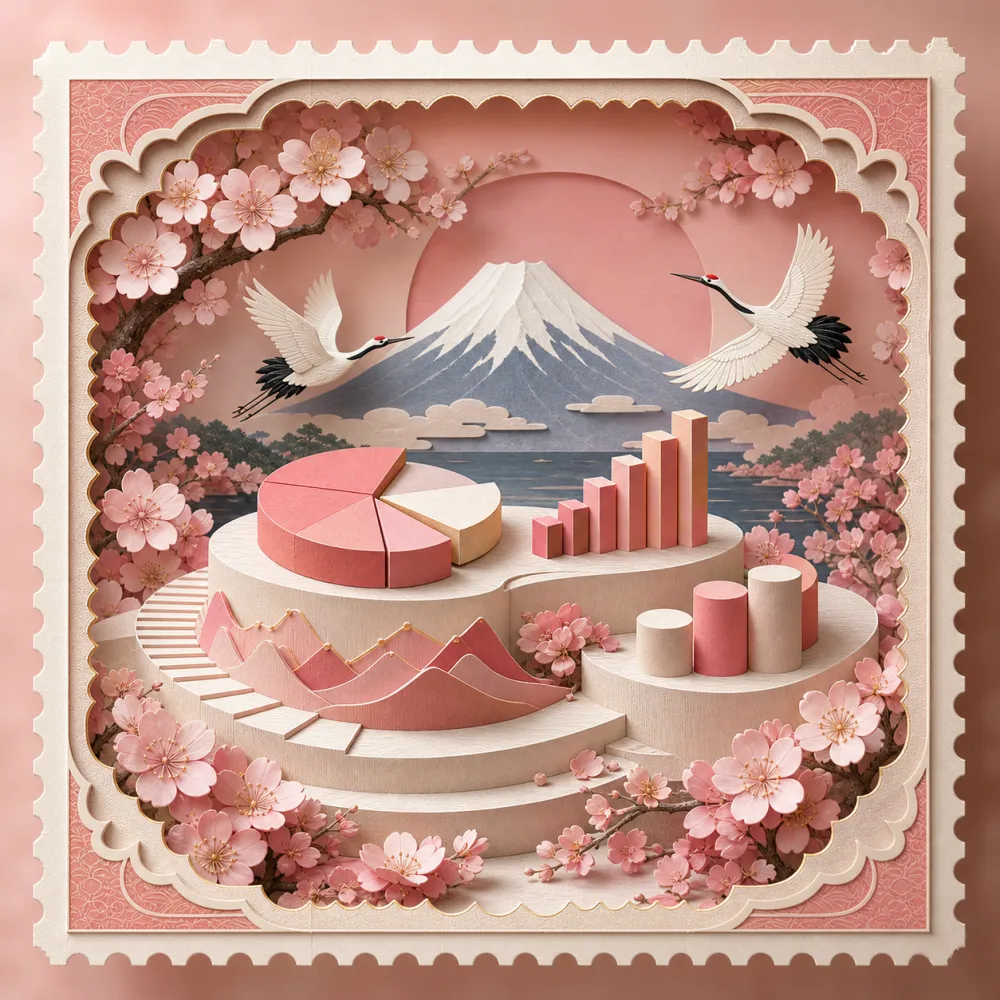
A diagram base gives you a clean structure that you can label manually in PPT.
Create a modern 16:9 workflow diagram base with four blank connected stages. Use subtle icon-like abstract shapes, plenty of whitespace, and a clean presentation design system so labels can be added later. No readable text, no logos, no watermark.
5. Data Story Background
For data slides, the image should support comparison instead of fighting the chart.
Create a subtle 16:9 data story background for a business presentation. Include abstract charts, a soft grid, a calm studio surface, and a large empty area where real data can be overlaid later. Keep colors restrained. No readable text, no logos, no watermark.

6. Product Use Case Slide
Show the product in context so the audience understands who it helps.
Create a 16:9 product use-case slide visual for an AI creation platform. Show a marketer reviewing social posts and slide images on a laptop in a realistic office setting, with clean lighting and a clear product context. No readable text, no logos, no watermark.

7. Before-and-After Slide
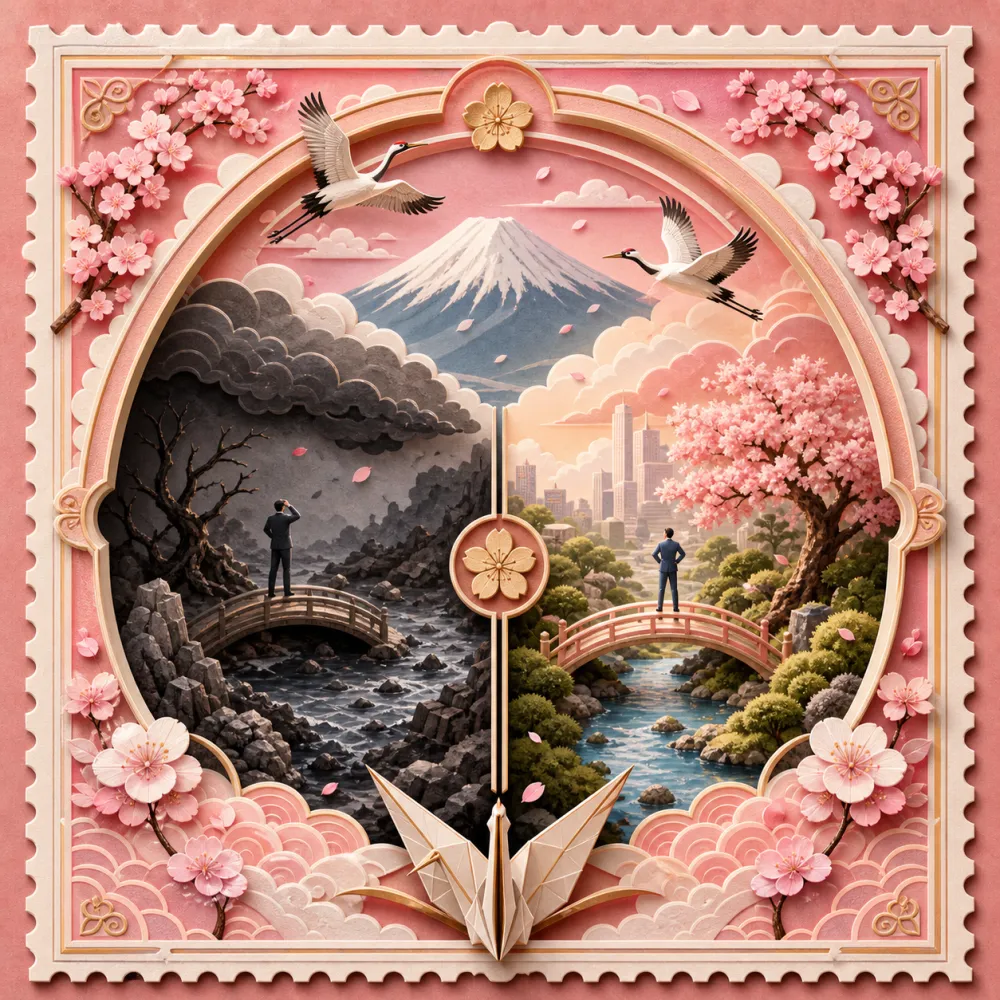
Before-and-after visuals make improvement easier to see than a paragraph can.
Create a 16:9 before-and-after presentation visual. On the left, show a messy asset folder and rough sketches; on the right, show a polished organized campaign board. Use a clean split composition and obvious improvement. No readable text, no logos, no watermark.

8. Closing Summary Image
The final image should feel resolved and help the audience remember the core message.
Create a 16:9 closing summary slide visual. Show a creative team reviewing a clean wall of final images, with warm confident lighting, balanced composition, and an open lower area for a key takeaway added later. No readable text, no logos, no watermark.

How to Use AI Images in a Deck
Write the slide message first, then generate the image. If the image comes first, the deck often starts following the picture instead of the argument.
In iMini, generate images without text, choose a consistent visual style, and keep open space where the slide headline or chart will sit. Use PPT itself for labels, numbers, and final copy.
About iMini
iMini is an AI creation platform for generating and editing images, videos, and text in one workflow. For the keyword PPT visuals, iMini helps presenters create slide-ready image bases for title slides, diagrams, workflows, before-and-after comparisons, and product use cases. The main benefit for the audience is clarity: better visuals make abstract points easier to follow and help each slide feel purposeful instead of crowded.
FAQ
Should PPT visuals include text generated by AI?
No for most decks. Generate clean image bases, then add titles, labels, and numbers inside PowerPoint or your presentation tool.
What aspect ratio should presentation images use?
Use 16:9 for most modern decks. It fits widescreen projectors, video calls, and online slide sharing.
How many visuals should one presentation use?
Use a visual when it clarifies a point, marks a section, explains a workflow, or gives the audience a memorable example. Avoid adding images only as decoration.